PhpStorm. Keyboard Shortcuts
PhpStorm provides a flexible system of keyboard shortcuts. We can choose several pre-installed keymap sets - Visual Studio, XWin, Gnome, KDE, Eclipse and Eclipse (Mac OS X), NetBeans. Such sets simplify switching to PhpStorm from another IDE and help avoid conflicts on a specific OS. Below are the keystrokes for the XWin scheme.
You can always define a hotkey in the options: press Ctrl+Alt+S (File » Settings...) and go to the Keymap tab.
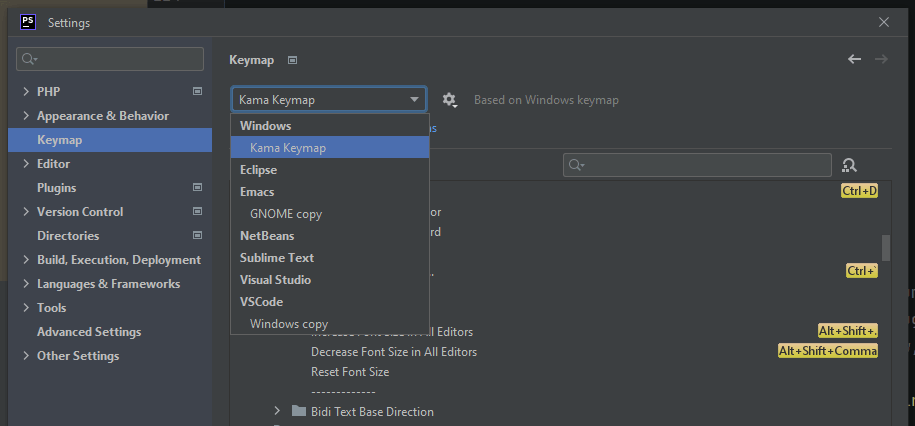
To view the current keyboard map, go to - Help » Keyboard Shortcuts PDF or at this link.
When creating your own hotkeys, PHPStorm saves them in the directory:
WINDOWS:
	%APPDATA%\JetBrains\<product>\<version>\keymaps
	C:\Users\JohnS\AppData\Roaming\JetBrains\PhpStorm2020.2\keymaps
MacOS:
	~/Library/Application Support/JetBrains/<product><version>/keymaps
	~/Library/Application Support/JetBrains/PhpStorm2020.2/keymaps
Linux:
	~/.config/JetBrains/<product><version>/keymaps
	~/.config/JetBrains/PhpStorm2020.2/keymaps
Each layout file contains only differences from the default layout.
These files can be used to share key maps with team members or between IDE instances. Copy the appropriate keymap file and place it in the keymap directory on another PhpStorm installation.
Tips
- Ctrl + P(Parameter Info)
- Show parameter hints for a method or function. Screenshot.
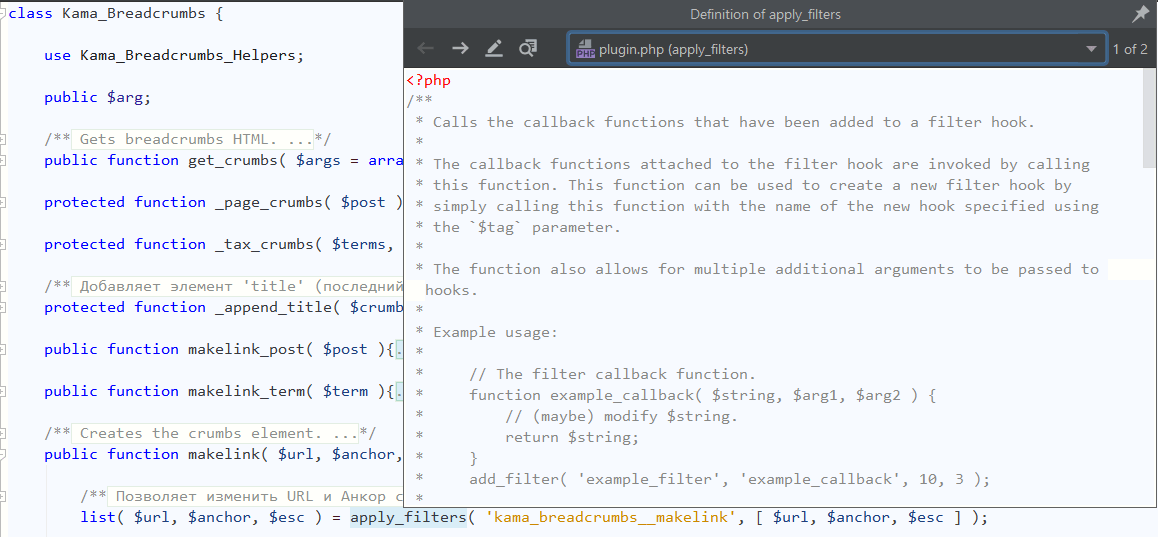
- Ctrl + Shift + I(Quick Definition)
- Show the implementation of a method/function, applied HTML class styles, etc. Screenshot.
- Ctrl + J(Insert Live Template)
- Live Template templates window.

Coding
- Ctrl + Shift + ↑↓(Move Line Up/Down)
- Swaps lines, moves the current line up/down.
- Ctrl + W(Expand Selection)
- Ctrl + Shift + W(Collapse Selection)
- Sequentially select the area under the caret.
- Ctrl + D(Duplicate Line or Selection)
- Duplicate the line under the cursor.
- Ctrl + Shift + J(join lines)
- Merge (glue) the selected lines into one.
- Ctrl + Alt + F(Reformat Code)
- Format the selected or entire code according to the configured template.
- Alt + Enter(Show Intention Actions)
This universal contextual assistant. Displays a context menu with available actions depending on where the cursor is. Here and:
- Update block comments by method signature.
- Replace quotes for strings.
- Import the class under the cursor into the use section.
- Add interface methods that need to be implemented.
- Ctrl + Y(Delete Line)
- Delete the line where the cursor is located.
Navigation
- Ctrl + Tab(Switcher)
- Screenshot. Window with files (recently viewed). Automatically closes. Switch between editor tabs. You can also select/switch to the needed modal window there.
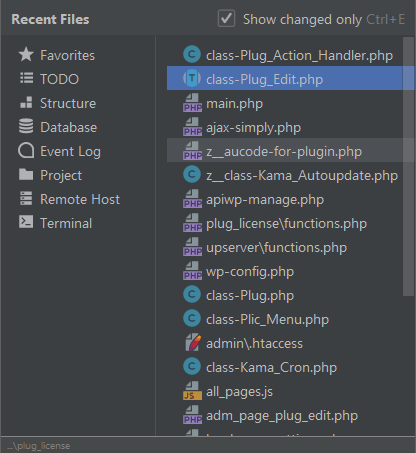
- Ctrl + E(Recently Changed Files)
- Screenshot. Window with files (recently changed).
- Alt + Home(Jump to Navigation Bar)
- Screenshot. Quick navigation bar for project files. I mapped it to
Alt + A. - Alt + ↑/↓(Previous/Next Method)
- Move between class methods - previous/next method.
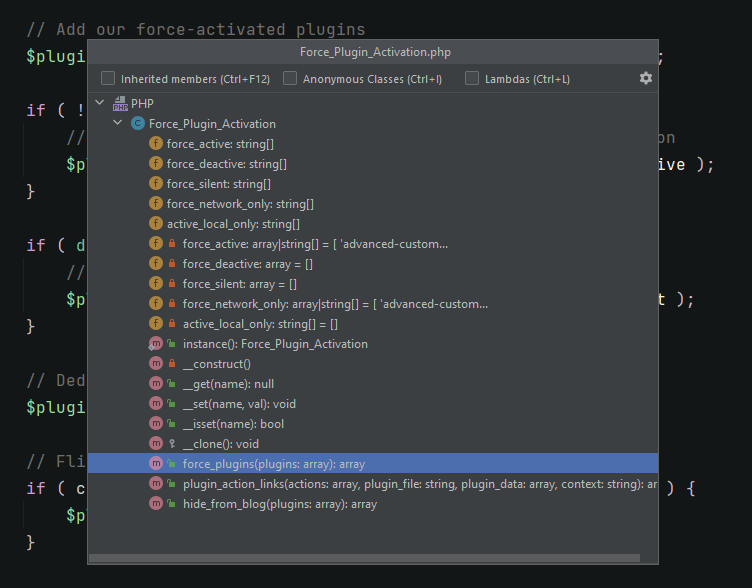
- Ctrl + F12(File Structure)
- Screenshot. Window with the file structure: list of PHP functions, class signatures, styles (for css), etc.
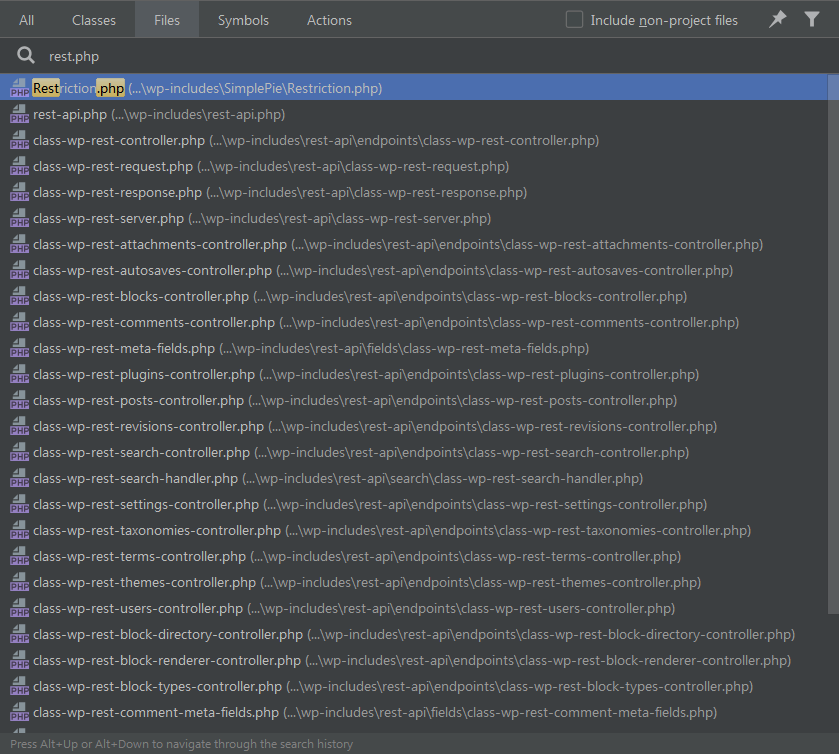
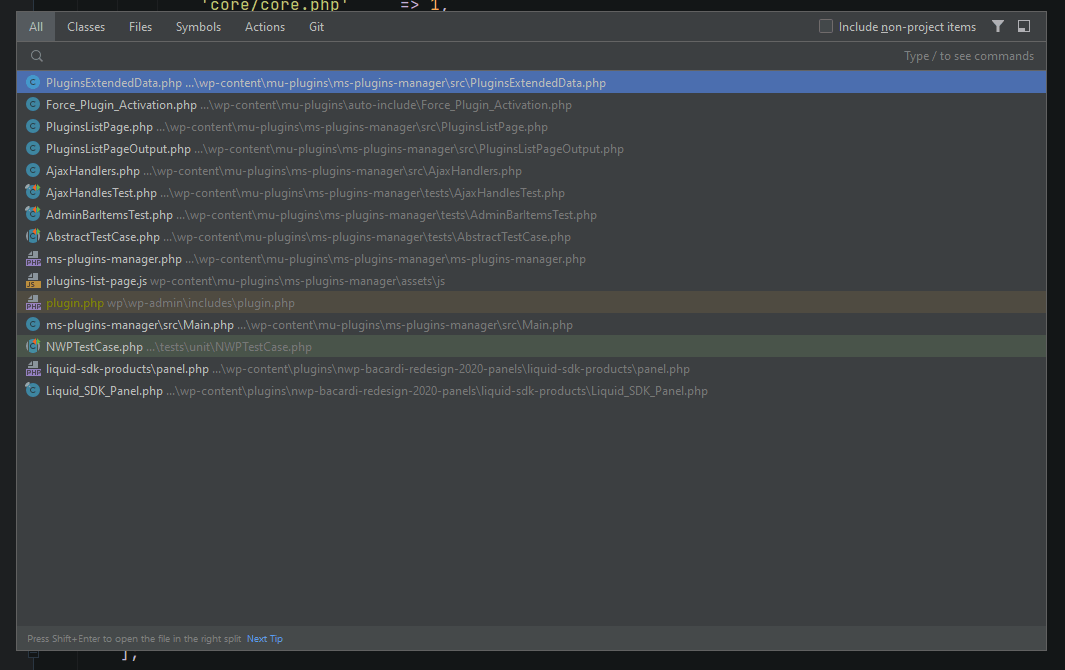
- Ctrl + Shift + N(File...)
- Screenshot. Quick file search. Highlight part of a file/class name and paste into the search. There you can also switch to search: Class, Symbol, Action.
- Ctrl + Shift + A(Find Action...)
- Screenshot. Search for anything in PHPStorm.
- Alt + F7(Find Usages)
- (under cursor) Find all places in the project where a class, method, property, or function is used.
- Ctrl + B(Declaration)
- (under cursor) The same as
Ctrl + Click.

Cursor Navigation
- Ctrl + Alt + ←/→(Back/Forward)
- Move through places where the cursor has been before.
- Ctrl + M(Scroll to Center)
- Center the current cursor position in the editor. Useful when you lost the cursor while scanning code. You can also just press Up and Down.
- Ctrl + Shift + Backspace(Last Edit Location)
- Go to the last edited location.
Collapse/Expand
- Ctrl + -/+(Collapse/Expand Component)
- Collapse/expand the code block under the cursor. My custom: Alt + 2 and Alt + Shift + 2.
- Ctrl + Shift + -/+(Collapse/Expand All)
- Collapse/expand the entire code. My custom: Alt + 1 and Alt + Shift + 1.
- Ctrl + Alt + -/+(Collapse/Expand doc comments)
- Collapse/expand all comments.
Bookmarks
- F11(Toggle Bookmark)
- Set/Remove a bookmark on the line where the cursor is. Also the same as
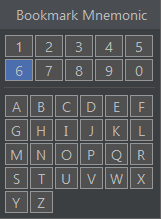
Ctrl + Clickon the left gutter. - Ctrl + F11(Toggle Bookmark With Mnemonic)
- Set/Remove a bookmark with a mnemonic (identifier, bookmark number). Screenshot.
- Alt + 2(Favorites)
- Show/hide the bookmarks panel. My custom: Alt + 3
- Shift + F11(Show Bookmarks)
- Show/hide the bookmarks window. You can edit code right away there.
Refactoring
- Shift + F6(Rename...)
- Rename a variable, function name, class, file, HTML element tag wherever used.
- Ctrl + Alt + V(Variable...)
- Extract (pull out) the selected code into a variable.
- Ctrl + Alt + M(Method...)
- Extract (pull out) the selected code into a method.
Debugging
- F2(Next Highlighted Error)
- Shift + F2(Previous Highlighted Error)
- Move between errors in the code.
Windows
- F12(Jump to Last Tool Window)
- Switch back to the last used window.
Other
- Ctrl + Shift + X(Run Command...)
- Command Line Tools Console panel. Console for command-line tools: Composer, Symfony 2 (app/console), Laravel (artisan), etc.. Code completion support is available.
- Ctrl + Shift + P(Pull...)
- Ctrl + K(Commit...)
- Ctrl + Shift + K(Push...)
- GitHub Pull, Commit, Push.