WordPress 7.0 Release
WordPress 7.0 brings noticeable changes for developers and users: AI integration, updated admin, new editor features, block improvements, Site Editor, and important Core changes.
AI integration in Core
WordPress 7.0 takes the first step toward deeper AI integration in Core. The new architecture is provider-agnostic and gives developers more control over how to use AI capabilities in plugins, sites, and workflows.
Official plugin for AI integration: https://wp-kama.ru/plugin/ai
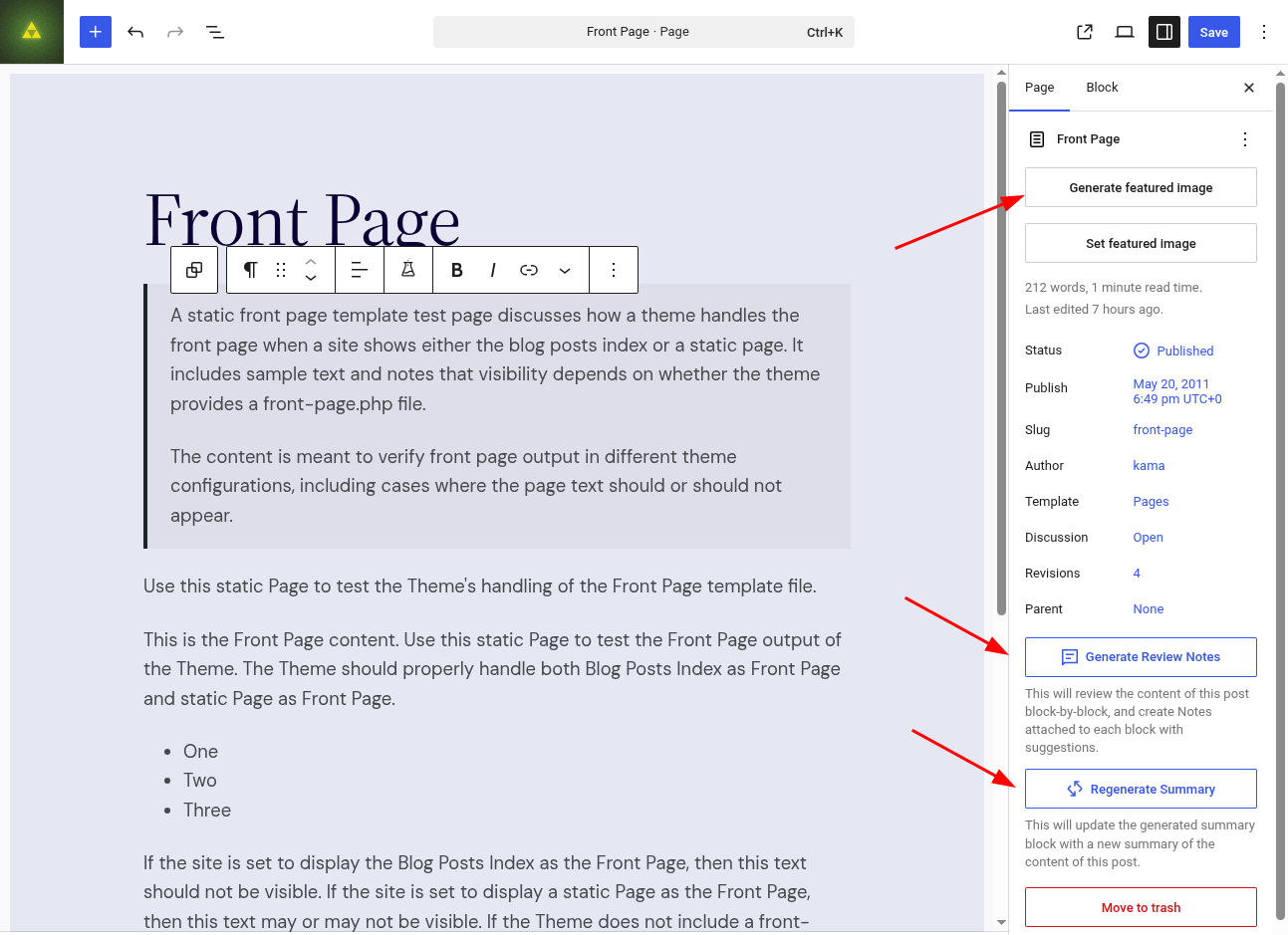
WP AI Client
More details: https://make.wordpress.org/core/2026/03/24/introducing-the-ai-client-in-wordpress-7-0/
WordPress 7.0 adds a new WP AI Client - a central interface through which plugins can interact with generative AI models without tight coupling to a specific provider. Request routing is handled by WordPress Core.
Example code:
$text = wp_ai_client_prompt( 'Summarize the benefits of caching in WordPress.' )
	->using_temperature( 0.7 )
	->generate_text();
API keys are passed via Connectors API. See Connectors API
Abilities API is integrated directly into WP AI Client and expands possibilities for building AI workflows.
Plugin developers can use the new function using_model_preference() to specify a preferred order of model usage.
It is also possible to apply capability definitions to map to available models - this helps reduce request costs and speed up processing.
AI Client includes advanced settings and the class WP_AI_Client_Prompt_Builder{}.
Also see the now-deprecated client package that was moved into core https://github.com/WordPress/wp-ai-client, it is based on code https://github.com/WordPress/php-ai-client
Client-Side Abilities API
More details: https://make.wordpress.org/core/2026/03/24/client-side-abilities-api-in-wordpress-7-0/
WordPress 7.0 extends the Abilities API and adds a JavaScript analogue: the Client-Side Abilities package. It includes new and hybrid capabilities, UI, command palette, as well as filtering and request features.
Plugin developers can hook @wordpress/core-abilities for automatic loading and registration of server capabilities via REST API. If only client capabilities are needed for a plugin, you can hook @wordpress/abilities.
Registered capabilities are organized into customizable categories. Capabilities and categories can be unregistered via PHP API. Metadata annotations are supported, and core/abilities provides useSelect for reactive queries in React components.
AI Connectors Screen
New “Connectors” screen (Settings > Connectors) allows managing AI provider connections in one place. Registered connectors and detailed registry metadata are automatically displayed as cards.
The screen includes three default providers: Anthropic, Google and OpenAI. Users can also configure their own connections.
Connectors API
More details: https://make.wordpress.org/core/2026/03/18/introducing-the-connectors-api-in-wordpress-7-0/
Management is on the Settings > Connectors page. Pre-installed models are available, as well as the ability to add custom ones.

Connectors API - allows connecting new providers and supporting future agent scenarios.
The API supports two authentication methods (api_key and none) based on the provider metadata. In future releases, support for additional connector types is planned.
Connectors API uses the WP AI Client registry by default for automatic provider discovery and connector generation. Connectors with other authentication methods are stored in the PHP registry.
To override connector metadata, you can use the wp_connectors_init hook. The API also includes three public functions for registry requests, and the client UI can be customized via JavaScript registration.
Admin Panel
New Modern color scheme and styles
The WordPress admin panel gets a new Modern color scheme. It features an updated color palette, higher contrast, and improved typography.
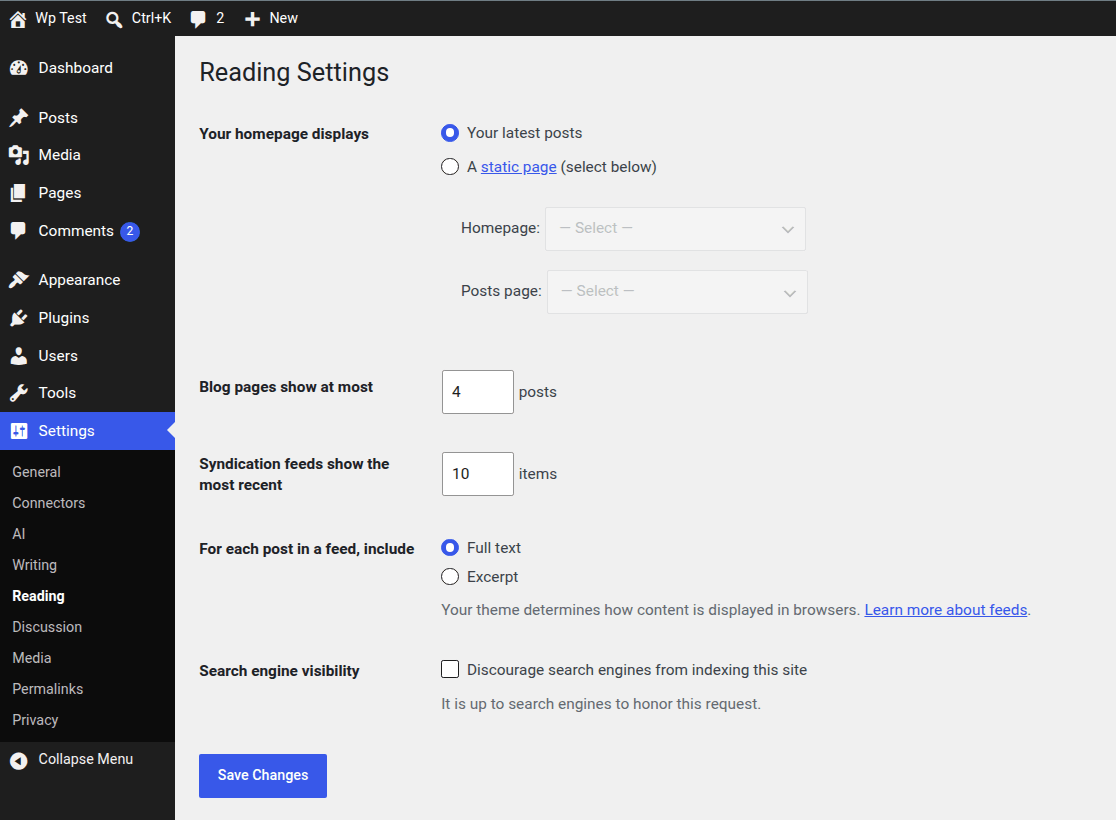
View Transitions in WP Admin
In WordPress 7.0, navigation within the admin dashboard is smoother. View Transitions API is used when moving between wp-admin screens with unique transition names for menu items.
View Transitions work only if you have not enabled the “reduce motion” setting at the OS level.
Command Palette Shortcut
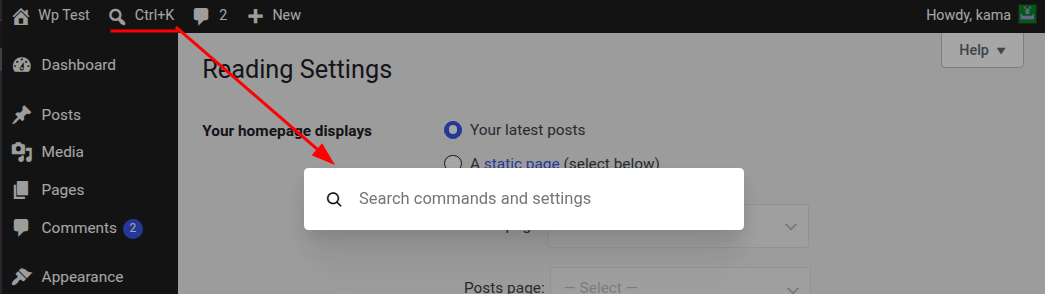
New command palette shortcut ⌘K / Ctrl+K in the top admin bar is available to all users.
It lets you quickly open command popups from anywhere in the admin: when creating content, configuring design, or working with notes.
Font Library
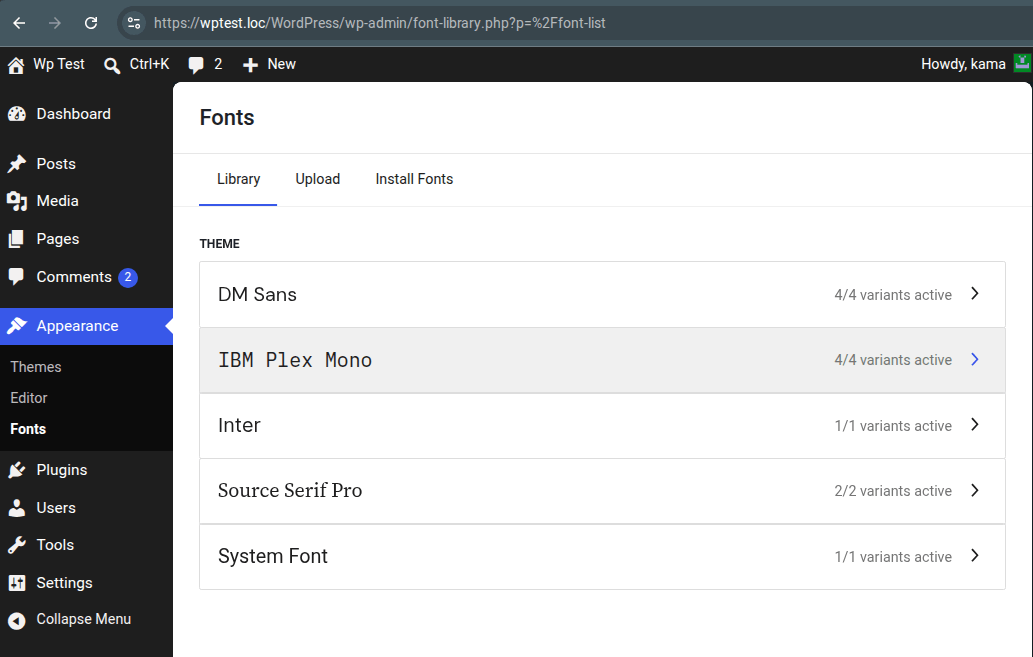
Font Library in WordPress 7.0 has a dedicated fonts management page. The team can now manage, upload, and install fonts in block-based, hybrid, and classic themes.
Visual Revisions
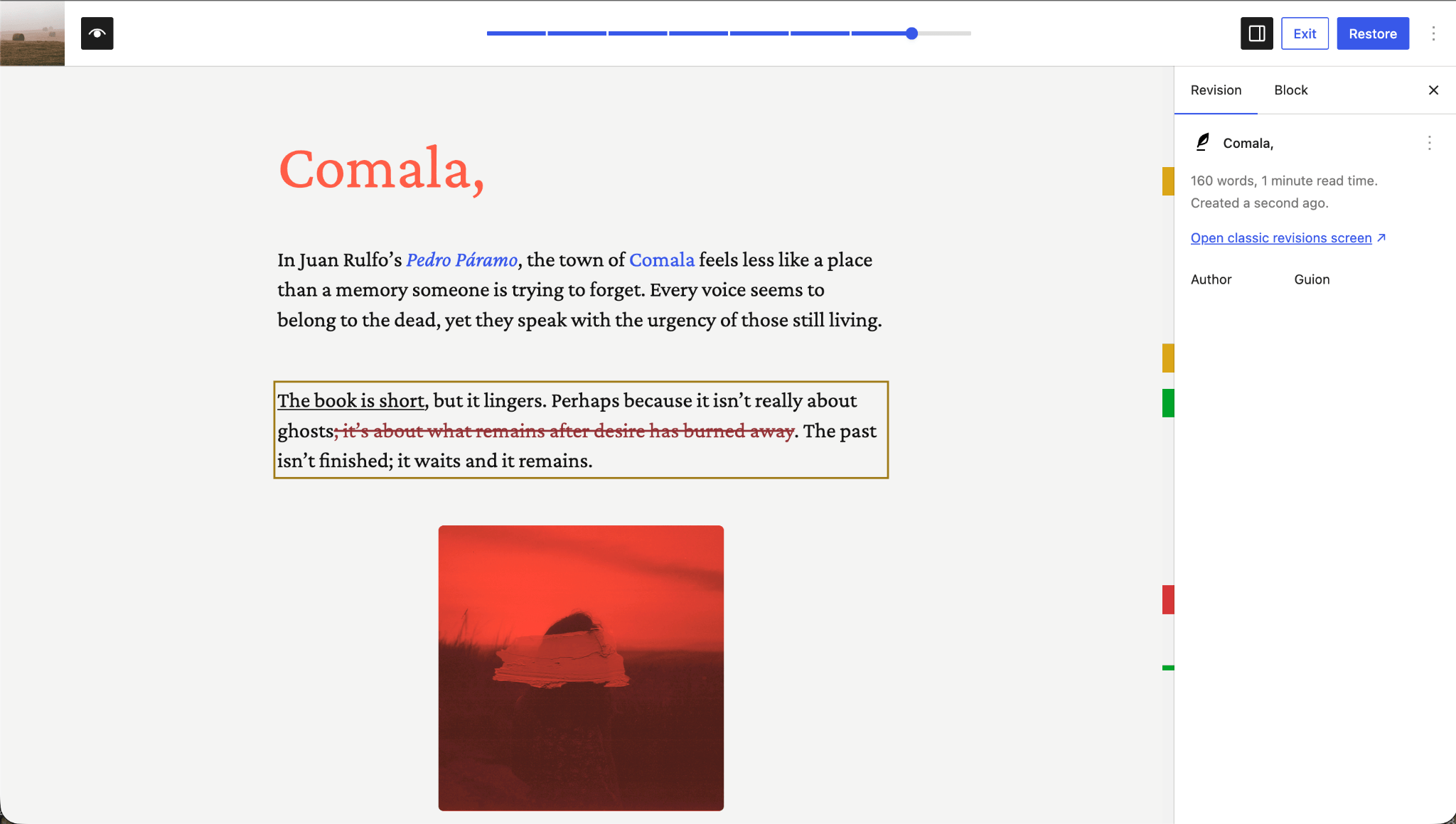
Visual Revisions simplify working with revision history. Users can visually compare two revision versions directly in the editor using a slider.
The document inspector shows a summary of changes. Color indicators help understand the size and placement of changes, and clicking navigates the editor to the required place on the page.
Iframed Editor
The iframe editor has become more stable.
The iframe editor is now forced on if all blocks inserted into a post use Block API v3 or higher. If a post contains blocks with an older Block API version, the iframe is disabled for backward compatibility.
Notes
Notes in WordPress 7.0 are more convenient: data now sync automatically, a new hotkey, a dashboard widget, and notifications.
There is also support for notes for multiple blocks, partial selections, and editing formatted text.
Customizable Navigation Overlays
More details: https://make.wordpress.org/core/2026/03/04/customisable-navigation-overlays-in-wordpress-7-0/
In WordPress 7.0, the mobile menu can be fully customized via the Site Editor. Previously, the overlay for the hamburger menu was fixed, and now it can be assembled from blocks and patterns: menu, logo, search, social networks, CTA, and a close button.
For themes, a new template part area is added:
"area": "navigation-overlay"
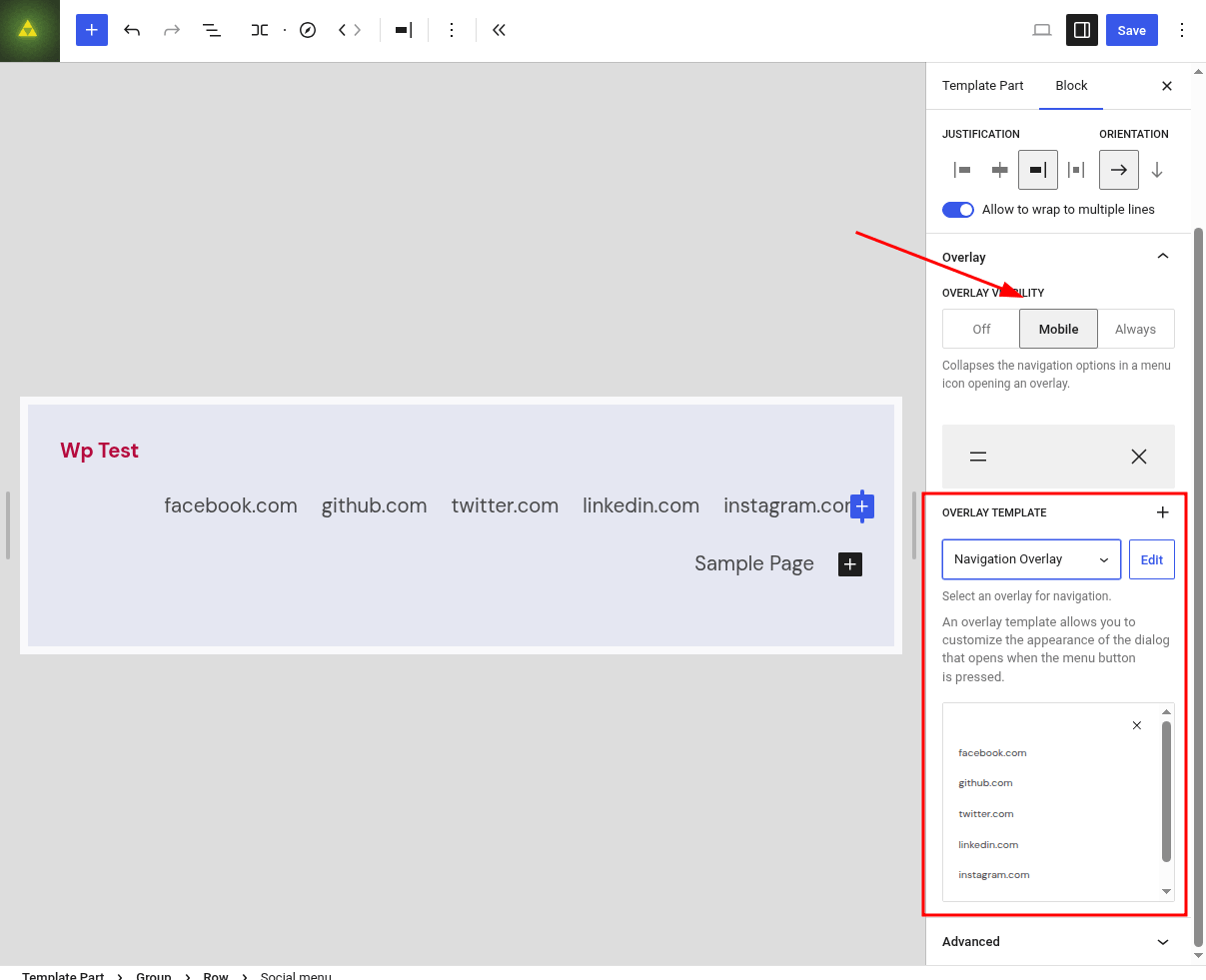
Constraints: for now, the overlay is full-screen only and works only inside the Navigation block.
Responsive Editing Mode
WordPress 7.0 adds block visibility settings based on device type. It is now possible to hide or show blocks for specific devices without affecting other viewports.

Visibility control is available via the block toolbar, the inspector sidebar, and the command palette. In List View, icons are displayed next to blocks with active visibility rules.
Ability to change styles for different breakpoints
Also in 7.0 there is an option to change styles for different breakpoints.
You can specify block styles separately for mobile and tablet. Base styles are considered for desktop. For example:
{
	"version": 3,
	"styles": {
		"blocks": {
			"core/group": {
				"color": {
					"text": "black"
				},
				"mobile": {
					"color": {
						"text": "hotpink"
					}
				}
			}
		}
	}
}
This would roughly translate to:
:root :where(.wp-block-group) {
	color: black;
}

@media (width <= 480px) {
	:root :where(.wp-block-group) {
		color: hotpink;
	}
}
Ability to opt out of contentOnly mode
contentOnly is a mode where in a pattern you can edit only content, not structure.
For example, you can edit:
- text
- images
- links
- values of required fields
But you cannot edit:
- block nesting
- layout
- styles
- order of inner blocks
- default blocks inside a pattern
In WordPress 7.0 this mode is applied more broadly to unsynced patterns.
That is, previously a user could freely edit internal blocks of a pattern, and now WordPress can restrict editing to content only.
To disable this behavior, use: disableContentOnlyForUnsyncedPatterns or the PHP filter: block_editor_settings_all
The main point for developers:
if your custom block is used inside such a pattern, WordPress must understand which block attributes are content.
For this, in block.json for the attribute you need to specify:
{
	"attributes": {
		"title": {
			"type": "string",
			"role": "content"
		}
	}
}
Otherwise WordPress may not allow proper editing of this attribute in contentOnly mode.
Hierarchical tree for buttons and lists

A new block support has appeared:
{
	"supports": {
		"listView": true
	}
}
It adds a List View tab directly in the inspector of the selected block.
This is useful for container blocks that have nested elements inside. For example:
Buttons→ButtonList→List ItemGallery→Image- custom block → set of inner child blocks
The idea is simple: the user can see the internal structure of the block not only in the overall List View of the editor but right in the sidebar inspector of the specific block. There you can more easily select, add, and reorder nested blocks.
For example, if you have a custom block Cards, inside which there are several Card Item, you can enable:
{
	"apiVersion": 3,
	"name": "my-plugin/cards",
	"title": "Cards",
	"supports": {
		"listView": true
	}
}
After this the block will have a separate List View tab where the editor can manage child blocks.
This is particularly important together with contentOnly. In WP 7.0 patterns often open in content-editing mode only. If the parent and child blocks are marked as content via role: content or supports.contentRole: true, WordPress allows adding child blocks inside such a container. ([Make WordPress][1])
Example:
{
	"attributes": {
		"title": {
			"type": "string",
			"role": "content"
		}
	},
	"supports": {
		"listView": true
	}
}
In short: listView: true is needed for custom container blocks to give the user a convenient tree of nested elements right in the block settings. It is better to enable it for blocks that have repeating inner blocks: cards, buttons, lists, tabs, accordions, social links, and similar structures.
Pattern Overrides & Block Bindings
More details: https://make.wordpress.org/core/2026/03/16/pattern-overrides-in-wp-7-0-support-for-custom-blocks/
WordPress 7.0 adds Pattern Overrides for custom blocks, pattern-level editing modes,
Attributes of blocks that support Block Bindings now also support Pattern Overrides for custom blocks.
Pattern Overrides are now applied to any blocks, including custom ones, and can be enabled via the filter block_bindings_supported_attributes.
Attribute values appear in the rendered blocks markup for both dynamic and static blocks.
If static blocks have attributes more complex than HTML API can handle, you can use the render_callback() function to ensure correct rendering of related attribute values output.
New Builder (design, new blocks)
In WordPress 7.0 there are more options for design customization: new blocks, new block supports, and additional tools for themes.
New blocks include: Heading, Breadcrumbs, and Gallery with lightbox support. Also added is support for text padding, columns, width and height sizes, and aspect ratios for wide and full-size images.
All block design innovations are listed here: https://make.wordpress.org/core/2026/04/22/roster-of-design-tools-per-block-wordpress-7-0/
Custom CSS at the Block Level
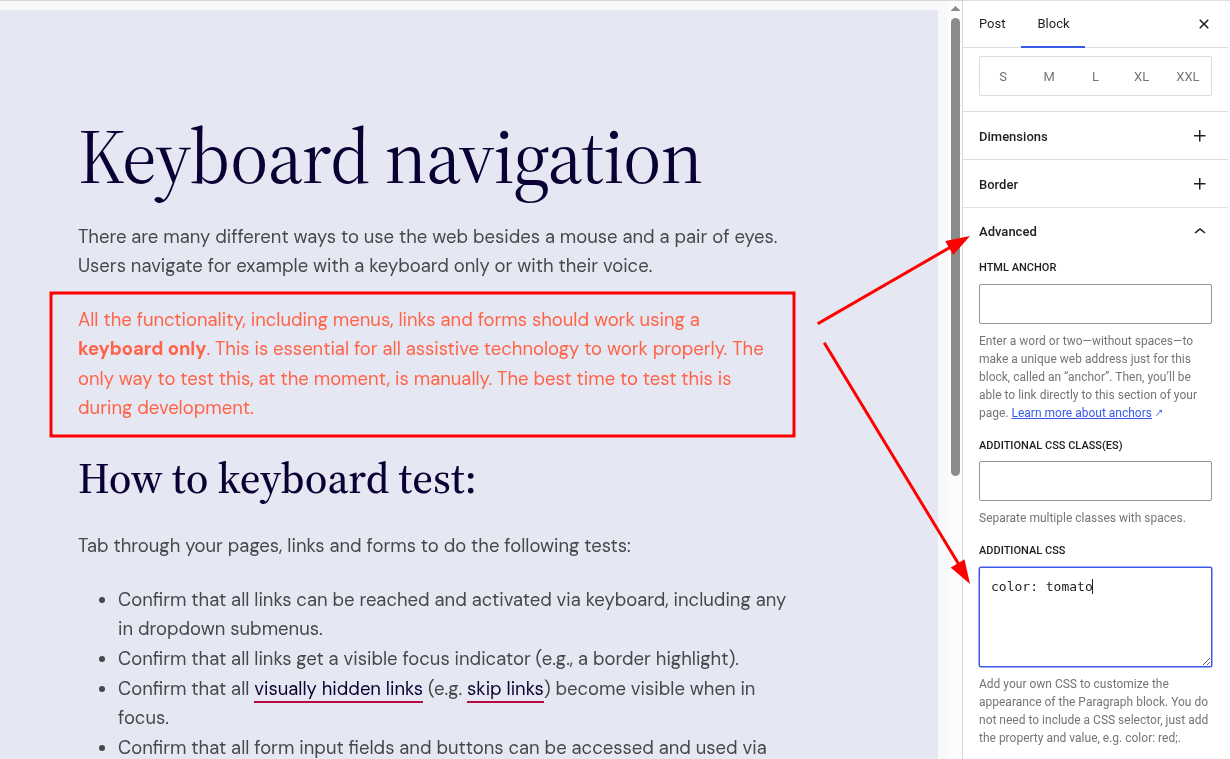
In WordPress 7.0 you can add custom CSS for individual blocks directly on the page. This gives more control over specific content elements without moving all styles to a global CSS file.
Block “Headings”
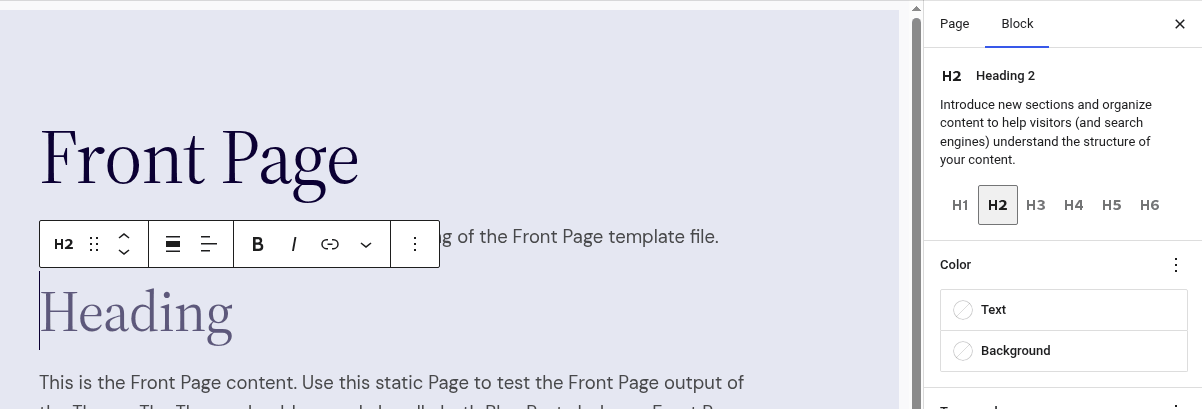
The new Heading block includes options for all heading levels.
Supports convenient level switching in the inspector sidebar, quick transformations, and is searchable and available in the slash inserter.
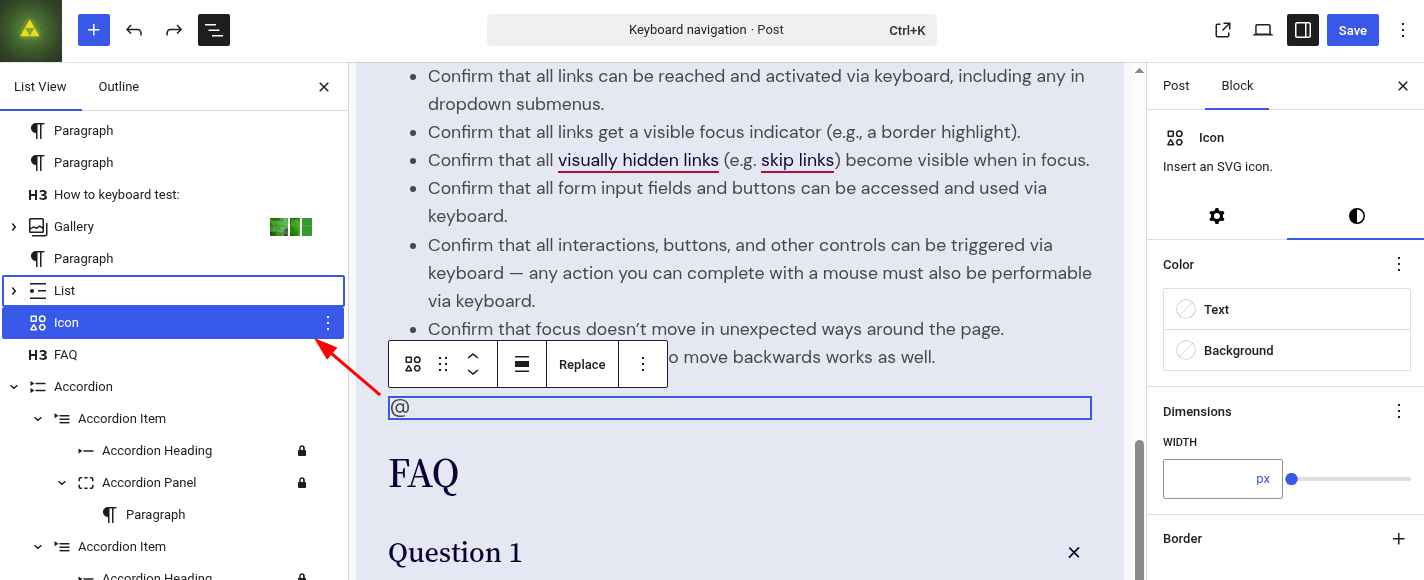
Block “Icon”

Block “Breadcrumbs”
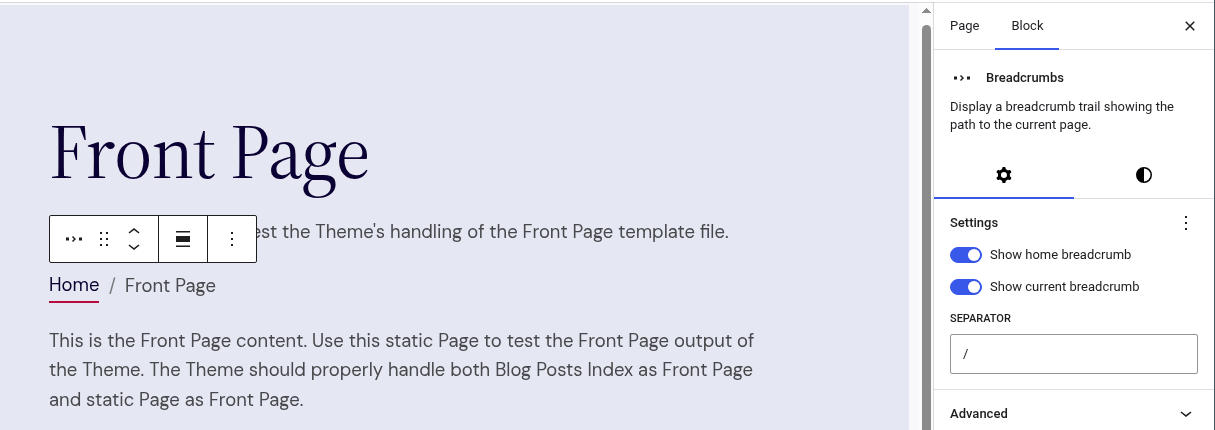
The new Breadcrumbs block automatically shows the site’s navigational hierarchy. It can be globally used in theme parts, for example in the header.
New filters allow developers to add, remove, and modify breadcrumb trails, and to specify taxonomies and terms.
Block “Navigation”
Working with the navigation block has become easier thanks to improved insertion, Interactivity API support for editing patterns and contentOnly, and improved display of related page items.
Video URL for the “Cover” Block
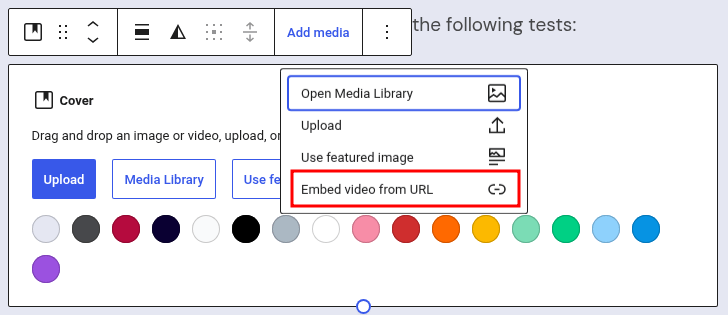
Now video can be used as a background in the Cover block.
Block “Gallery”
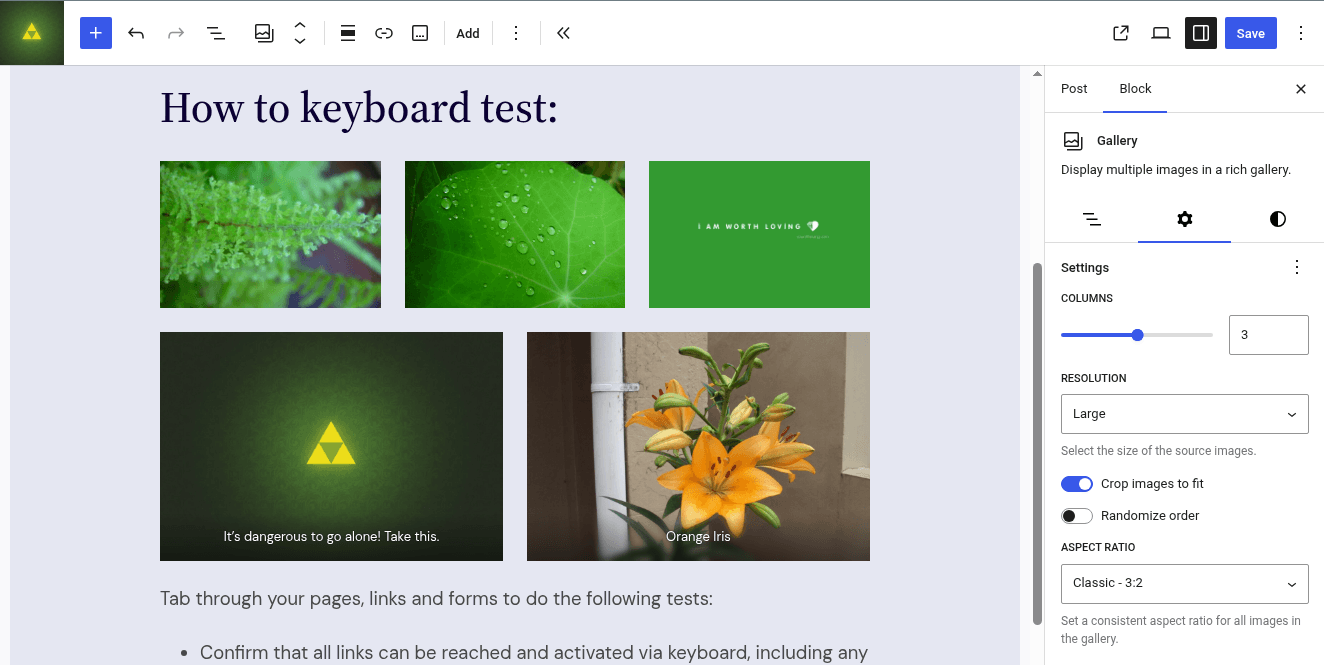
Gallery now supports a lightbox and a new slideshow option. To enable click-to-enlarge, simply create a gallery, click the link icon, and choose “Enlarge on click”.
Extended support for the block <p>
More details: https://make.wordpress.org/core/2026/04/22/roster-of-design-tools-per-block-wordpress-7-0/
Text in the Paragraph block can now be placed in columns.
Block “Accordion”
And nested blocks Accordion Heading, Accordion Item, Accordion Panel
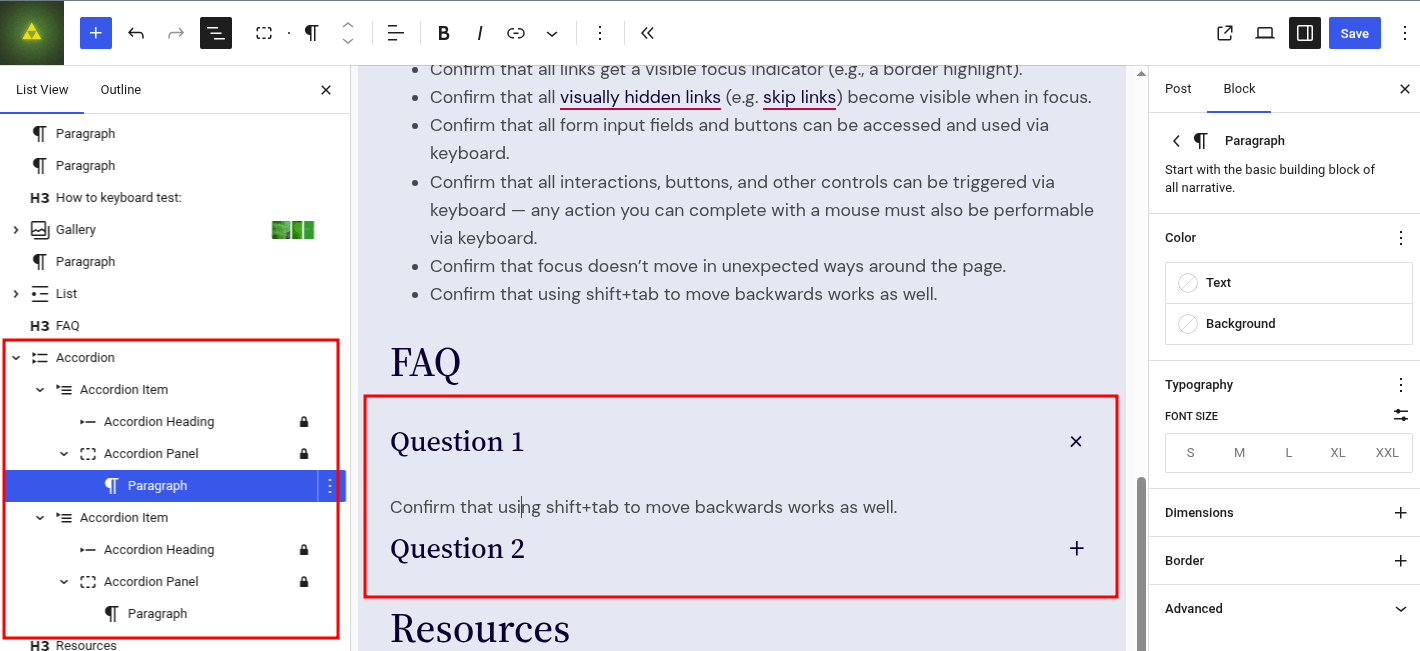
Improvements to Dimensions Support
More details: https://make.wordpress.org/core/2026/03/15/dimensions-support-enhancements-in-wordpress-7-0/
WordPress 7.0 adds support for block height and width, paragraph text padding, presets, and pseudo-elements for the core/button block (:hover, :focus, :focus-visible, :active) at the theme.json level.
There is also support for preset dimension values in theme.json for block supports: width, height, and minimum height. This reduces the need to manually set the same values for different blocks.
Developer Tools
WordPress 7.0 adds new development tools, expands existing APIs, and improves capabilities for building more flexible solutions.
PHP-Only Block Registration
WordPress 7.0 allows creating blocks and patterns directly on the server with PHP and registering them via the Block API.
If you specify 'supports' => array( 'autoRegister' => true ) in a block and add a render callback, the block is automatically registered and exported to the client via a global JavaScript variable.
PHP-registered block attributes can be edited in the editor. For automatically registered PHP blocks, inspector controls are generated via DataForm.
Interactivity API
More details: https://make.wordpress.org/core/2026/02/23/changes-to-the-interactivity-api-in-wordpress-7-0/
In the @wordpress/interactivity package there is a new function watch(). It subscribes to changes of signals inside a callback and re-runs it when those signals change.
data-wp-watch can be added to the lifecycle of DOM elements to respond to state changes. The state.url value is now populated on the server side when processing directives.
DataViews and DataForms
In DataViews and DataForms a new Activity layout, a new Details layout, improved modal window rendering, and the ability to register third-party types in Field API have appeared.
Iterations of Block Bindings API
Block Bindings API has improvements for binding blocks and pattern overrides. You can now filter available attribute sources by the format in accordance with the Field API.
New plugin list filter
In get_views() a new filter plugins_list_status_text has been added for custom filtering.
Custom statuses added via plugins_list now appear as tabs to filter related plugins. The tab label can be customized via the new hook plugins_list_status_text.
Site Editor: wordpress/build and routing
In WordPress 7.0 the foundation for an extensible Site Editor is laid: routing, route validation, a new package @wordpress/boot that allows plugins to create custom Site Editor pages, and refactoring of @wordpress/scripts for directory-based builds and reduced reliance on Webpack.
Developer Bonuses
Block Hooks for CPTs similar to content
Block Hooks logic has been moved from separate post type filters to the REST controller.
Safer user registration
Administrator and Editor roles have been removed from the default roles dropdown in Settings > General.
Site Health now warns if one of these roles was chosen before the update. The new filter default_role_dropdown_excluded_roles allows developers to modify the excluded roles list.
CodeMirror update to v5
CodeMirror has been updated to the latest v5 version, along with CSSLint, HTMLHint, and JSONLint. Esprima has been replaced with Espree to support ES6 and JavaScript linting.
Updates to external libraries
backbone.jsupdated to the latest 1.6.1- Requests library updated from 2.0.11 to 2.0.17
PHP updates
-
The minimum PHP version for WordPress Core is now 7.4.
More details: https://make.wordpress.org/core/2026/01/09/dropping-support-for-php-7-2-and-7-3/ - PHPMailer updated to version 7.0.2, including a fix for the sender address bug
Accessibility
WordPress 7.0 includes several accessibility improvements:
-
Password reset on login is prefilled with the username to meet WCAG 2.2
-
New
wp_get_image_alttext()function imports images' alt text from IPTC metadata -
The
word-breakproperty is added to.screen-reader-textfor proper screen reader reading -
Title attributes can be removed from two functions using the new
$use_title_attrparameter - Title attributes are removed by default from three author link functions
And this is not all!
WordPress 7.0 includes more than 300 Core fixes, 486 Gutenberg fixes, 77 enhancements and feature requests, and 35 completed tasks.
Some notable changes:
- Site Health: OPCache added to
Site Health > Information > Server - Editor: title and description metadata added to patterns on save
- Script Loader: scripts can now depend on modules
- Script Loader: HTML5-scripts support in themes is deprecated and removed
- General: ability to hook into
wp_trigger_error()whenWP_DEBUGis not true - Multisite: networks and sites are no longer automatically marked as spam on account lock
- Themes: improved handling of deprecated PHP 8.1 notices
--
Source: https://make.wordpress.org/core/2026/05/14/wordpress-7-0-field-guide/