WordPress 7.1 Release
The WordPress 7.1 release is scheduled for August 19, 2026. In this version, there are more than 310 changes in the core, over 180 bug fixes, and almost 600 improvements from Gutenberg.
The release took place as planned on August 19, 2026 and received the codename “Mary Lou” in honor of jazz pianist and composer Mary Lou Williams.
Among the most important changes:
- adaptive styles and block states have appeared.
- the post editor now always runs inside an iframe.
- images can be processed in the browser.
- the toolbar (admin bar) has become permanent.
- a public SVG Icon API has been introduced.
- the Abilities API has gained new capabilities.
Below, we’ll break down how all of this works.
Adaptive block styles
The main visual change in WordPress 7.1 is built-in style editing for different screen sizes. Previously, adaptive differences had to be described manually via media queries or implemented by creating a custom UI inside the block. Now you can set styles for tablet and phone:
- in global styles for a specific block type;
- in the settings of a specific block instance;
- directly in
theme.jsonof the theme.
The editor lets you enable the “Adaptive styles” mode, choose tablet or phone, and see the result at the corresponding viewport size. Support extends to block and block style variations that use standard Block Supports: typography, color, background, borders, spacing (sizing), padding (spacing), and layout settings.
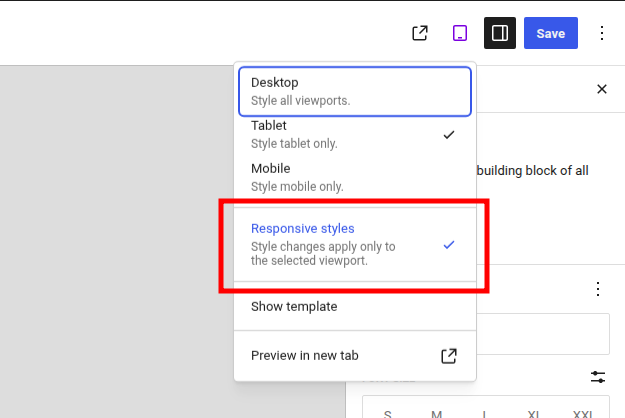
The block’s normal style remains the base and applies at any width. Tablet and phone values override only the specified properties. There is no separate @desktop state.
Adaptive styles in theme.json
For mobile and tablet values, use the keys @mobile and @tablet:
{
	"version": 3,
	"styles": {
		"blocks": {
			"core/group": {
				"spacing": {
					"padding": {
						"top": "3rem",
						"right": "3rem",
						"bottom": "3rem",
						"left": "3rem"
					}
				},
				"@mobile": {
					"spacing": {
						"padding": {
							"top": "1rem",
							"right": "1rem",
							"bottom": "1rem",
							"left": "1rem"
						}
					}
				}
			}
		}
	}
}
In this example, the group gets 3rem padding by default and 1rem on the mobile screen. If any property is not specified in @mobile, its base value continues to apply.
In the markup of a specific block, adaptive values are saved in the existing style attribute:
<!-- wp:paragraph {"style":{"@mobile":{"typography":{"fontSize":"1rem"}}}} -->
<p>Text with an adaptive font size.</p>
<!-- /wp:paragraph -->
On a WordPress site, it converts this data into CSS inside media queries and adds a stable generated class to the block. For values of a specific block instance, some declarations receive !important to override the block’s normal inline styles. Layout and blockGap are handled by the existing Layout Support mechanism.
Custom block control panels do not automatically become adaptive. The new mechanism works only for properties connected via standard Block Supports.
Configuring breakpoints
By default, WordPress uses the following ranges:
| State | Media query |
|---|---|
@mobile |
@media (width <= 480px) |
@tablet |
@media (480px < width <= 782px) |
A block theme can change both boundaries via the new top-level property settings.viewport:
{
	"version": 3,
	"settings": {
		"viewport": {
			"mobile": "30rem",
			"tablet": "45rem"
		}
	}
}
Non-negative values in px, em, and rem are allowed. Percentages, CSS functions, dimensionless numbers, and other units are ignored. If the tablet breakpoint is less than or equal to the phone breakpoint, WordPress uses only the mobile state. The configuration is shared for the theme and cannot differ for individual blocks.
These same values are used by the block visibility function and by device previews in the editor.
Disabling the responsive styles UI
A plugin or theme may hide UI elements that allow users to create responsive overrides:
add_filter( 'block_editor_settings_all', 'my_plugin_disable_responsive_editing' );

function my_plugin_disable_responsive_editing( $settings ) {
	$settings['responsiveEditingEnabled'] = false;

	return $settings;
}
This disables only the editing interface. Already saved values in theme.json, global styles, and block attributes continue to work and are rendered on the site.
Interactive block states
WordPress 7.1 also lets you set styles for states :hover, :focus, :focus-visible, and :active via
- global styles
- settings of an individual block
theme.json.
In this version, the user interface is available only for the “Button” and “Navigation link” blocks.
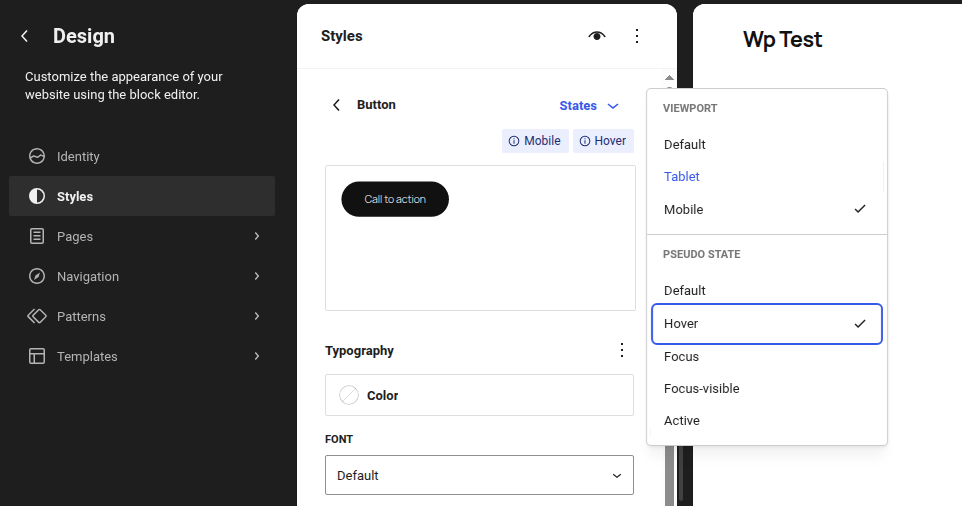
In theme.json, states are stored inside the block object:
{
	"version": 3,
	"styles": {
		"blocks": {
			"core/button": {
				"color": {
					"background": "black",
					"text": "white"
				},
				":hover": {
					"color": {
						"background": "blue"
					}
				},
				":focus-visible": {
					"color": {
						"background": "purple"
					}
				}
			}
		}
	}
}
States can be combined with adaptive styles. First, specify the viewport, then the pseudo-state:
"@mobile": {
	":hover": {
		"color": {
			"background": "var:preset|color|contrast"
		}
	}
}
Navigation > Custom Link
For the “Navigation link” block, an early mechanism for custom states has been added. Through the -current key, the theme can style the current menu item:
{
	"styles": {
		"blocks": {
			"core/navigation-link": {
				"-current": {
					"color": {
						"text": "var:preset|color|contrast"
					}
				}
			}
		}
	}
}
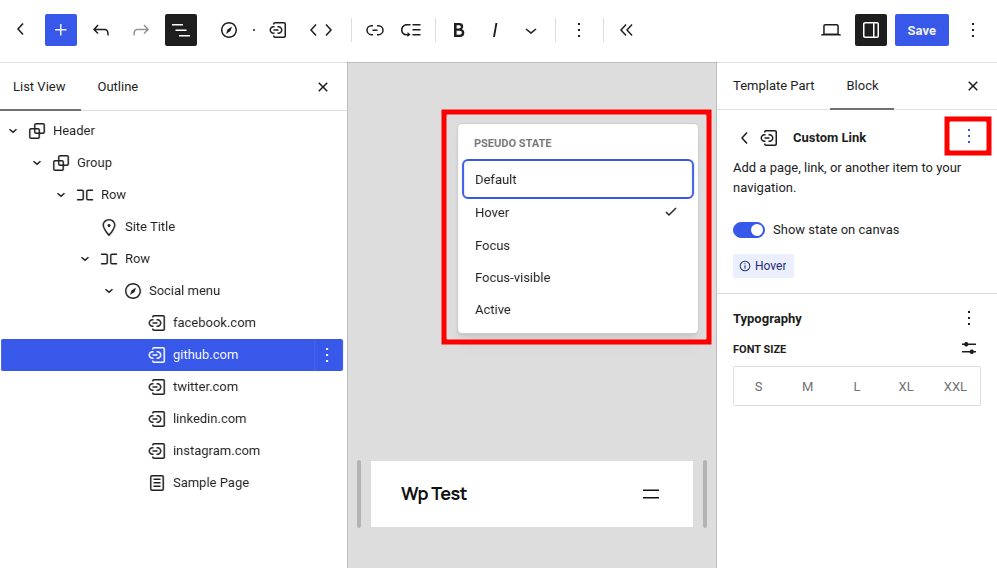
There is no user interface for -current yet: the value can be set only in theme.json.
Disabling interactive block states
Editing interactive states can be disabled separately:
add_filter( 'block_editor_settings_all', 'my_plugin_disable_block_states_editing' );

function my_plugin_disable_block_states_editing( $settings ) {
	$settings['blockStatesEditingEnabled'] = false;

	return $settings;
}
Just like responsiveEditingEnabled, this setting hides the interface but does not remove previously saved styles.
The post editor now always runs inside an iframe
Previously, the post editor could operate in two modes:
- inside an iframe;
- directly in the administrative page document.
In WordPress 7.0, the mode depended on the blocks in the post. If all blocks used apiVersion: 3 or higher, the editor opened in an iframe. If at least one block used the older Block API version, WordPress disabled the iframe for compatibility.
As a result, one post could open in an iframe, while another could open without it. The same plugin code behaved differently across different posts.
Starting with WordPress 7.1, the post editor always loads inside an iframe. The theme type, the Block API versions of registered blocks, and the post content no longer affect this.
The site editor, template editor, and device preview have used iframes for a long time. Now the post editor works using the same approach.
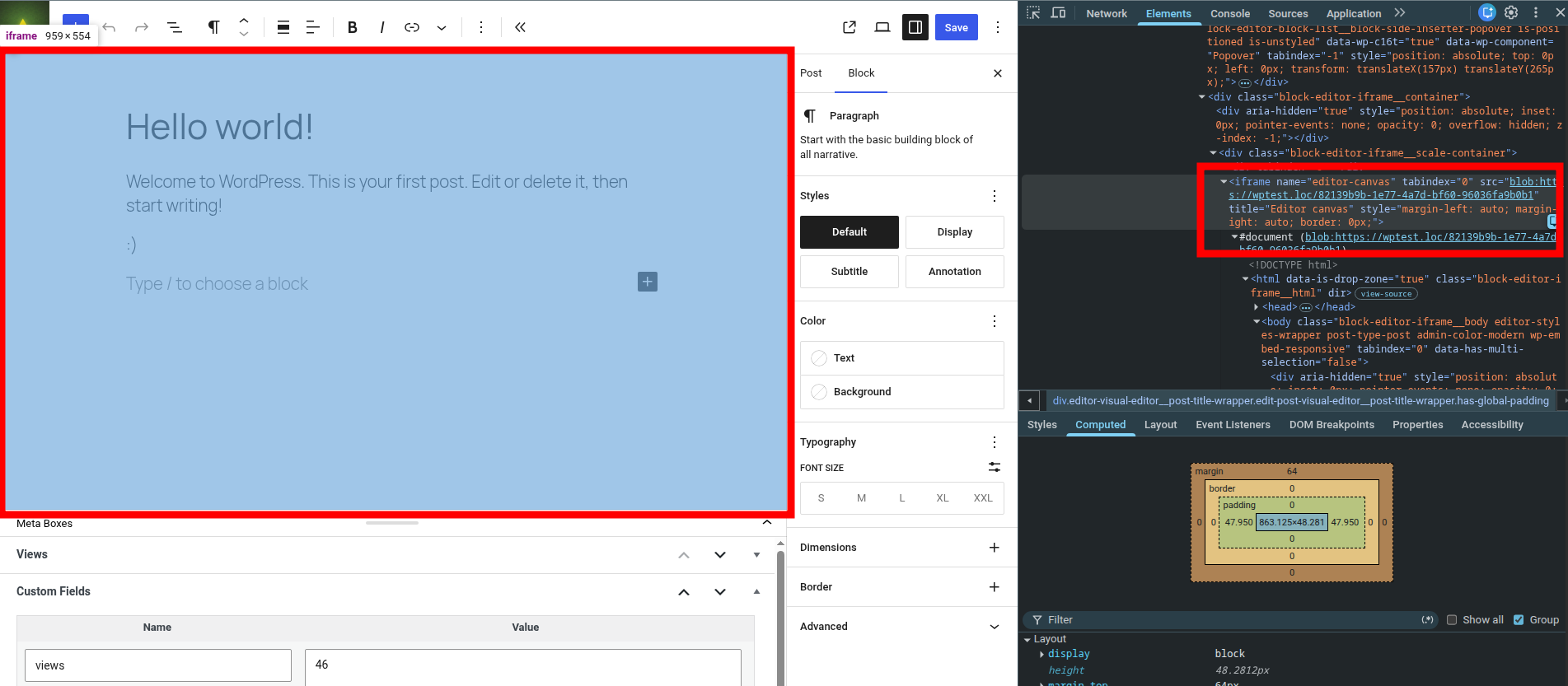
Why an iframe is needed
An iframe isolates the post content from the administrative page interface. This allows you to:
- load theme canvas styles without the risk of changing the editor interface;
- show the appearance of the post on the site more accurately;
- separate content events and styles from the editor panel;
- make the behavior of different WordPress editors consistent.
Processing images in the browser
How images were processed before
Usually, the browser sent the original file to the server. After that, PHP used GD or Imagick to:
- fix orientation based on EXIF;
- resize very large images;
- create sizes registered via add_image_size();
- change image format and quality;
- store attachment metadata.
Processing could fail due to PHP memory limits, a weak server, or lack of support for the needed format in GD or Imagick.
How the new mechanism works
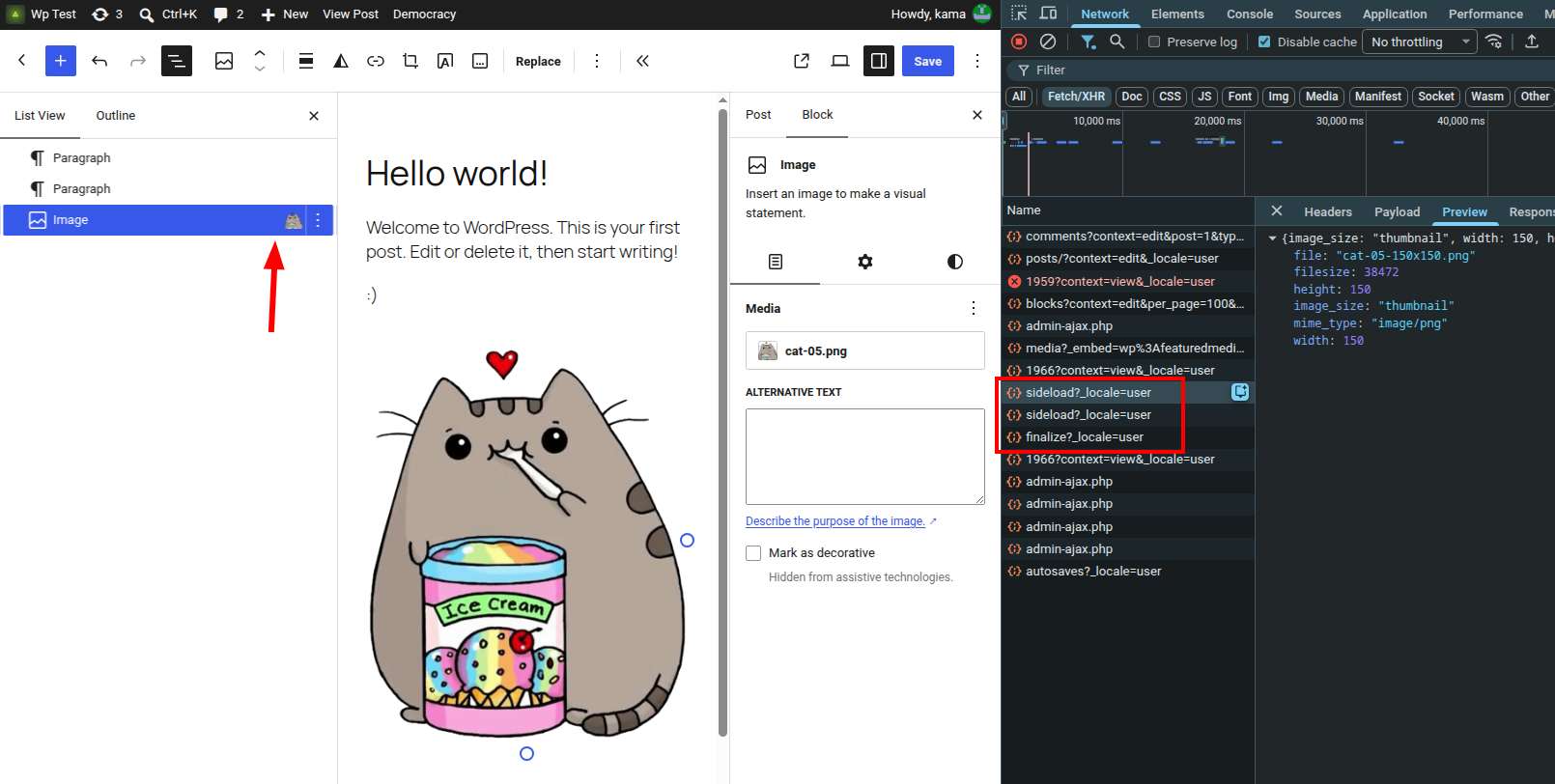
In WordPress 7.1, a supported browser processes the image before sending files to the server. For this, wasm-vips is used — a WebAssembly build of the libvips library. Heavy work runs in a Web Worker and does not block the editor interface.
The sequence looks like this:
- The browser receives the image settings from WordPress and the list of registered sizes.
- The original is decoded in the browser.
- The browser resizes, changes orientation, converts format, and adjusts image quality.
- For each registered size, a separate file is created.
- The original and the created sizes are uploaded to the server via separate REST API requests.
- The final request completes processing and updates attachment metadata.
If a specific size fails to upload due to a temporary network error, WordPress retries the request with an increasing delay. If the connection is lost, uploading pauses and resumes after the network is restored.
What happens in the browser
- creates standard sizes and sizes registered via add_image_size() by resizing and cropping according to the
$cropparameter; - compresses JPEG, PNG, WebP, AVIF, and GIF; JPEG quality can be changed via the filters wp_editor_set_quality and jpeg_quality;
- converts images to another format according to the filter settings image_editor_output_format;
- fixes image orientation based on EXIF data; this behavior can be changed via the filter wp_image_maybe_exif_rotate;
- creates progressive JPEG and interlaced PNG if enabled via the filter image_save_progressive;
- decodes HEIC and HEIF, loads the web version as JPEG, and saves the original file as a companion
source_image; - processes AVIF, including creating intermediate sizes, even if server-side GD or Imagick does not support this format;
- converts an opaque animated GIF into a more compact MP4 or WebM video when uploaded via a separate “Image” block. Transparent GIFs and images inside the “Gallery”, “Media & Text”, and “Cover” blocks are not converted.
For HEIC, the original file is saved as a companion source_image and is removed together with the attachment.
Transparent GIFs remain images. Automatic replacement of GIF with video applies only to a standalone “Image” block. GIFs inside the “Gallery”, “Media & Text”, and “Cover” blocks are not converted.
According to the WordPress team, the created libvips JPEG files are about 15% smaller than files created by GD or Imagick with comparable settings.
Browser support
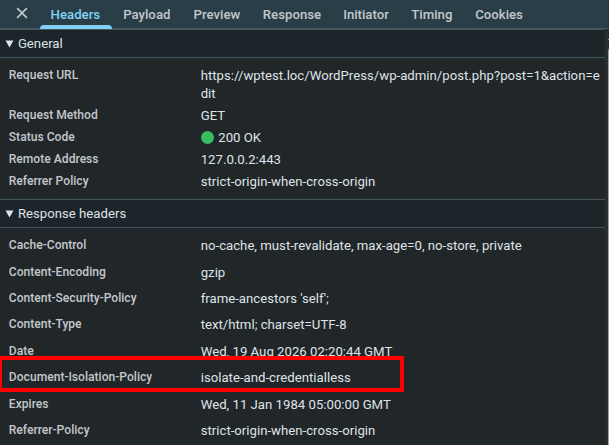
The full mechanism requires SharedArrayBuffer and the Document-Isolation-Policy header. At the time WordPress 7.1 is released, it is available in Chrome and Edge version 137 or newer.
| Browser | Processing in the browser |
|---|---|
| Chrome 137+ | Full support |
| Edge 137+ | Full support |
| Firefox | Automatic server-side processing |
| Safari | Automatic server-side processing, but HEIC decoding is available |
WordPress also checks device and connection characteristics. Browser processing is enabled if the device has more than 2 GB of memory, at least two CPU cores, the connection is not marked as 2g or slow-2g, Save-Data is not enabled, and the CSP allows creating a worker from blob:.
If at least one check fails, WordPress silently falls back to the previous server-side processing.
Which php hooks continue to work
The browser receives settings from the server, so the following filters continue to be honored:
- big_image_size_threshold — Filters the "BIG image" threshold value.
- image_editor_output_format — Allows changing the format in which the WordPress image editor saves processed images and generated sizes.
- image_save_progressive — Filters whether to output progressive images (if available).
- wp_image_maybe_exif_rotate — Filters the
$orientationvalue to correct it before rotating or to prevent rotating the image. - wp_editor_set_quality — Allows changing the default image compression quality based on its MIME type and dimensions.
- jpeg_quality — Sets the compression quality of generated JPG files.
Sizes added via add_image_size() are also created in the browser. If multiple sizes have the same parameters, WordPress creates one physical file.
The filter wp_generate_attachment_metadata continues to be called:
- with the context
createafter the initial upload; - with the context
updateafter all sizes have been uploaded and processing is finalized.
Which php hooks are not called
When processing in the browser, the server-side image editor is not used. Therefore, the following are not called:
- wp_image_editors — Filters the list of image editing library classes.
- image_memory_limit — Filters the memory limit allocated for image manipulation.
- image_make_intermediate_size — Filters the name of the saved image file.
How to disable it
Client-side processing can be disabled via a filter:
add_filter( 'wp_client_side_media_processing_enabled', '__return_false' );
You can check the state of the mechanism via a function:
if ( wp_is_client_side_media_processing_enabled() ) {
	// Client-side processing is allowed by WordPress settings.
}
The function shows whether the mechanism is enabled on the WordPress side. The actual choice of client-side or server-side path also depends on the user’s browser and device.
CSP and editor external resources
For Web Worker, the Content Security Policy must allow blob::
Content-Security-Policy: worker-src 'self' blob:;
If blob: is disallowed, WordPress will switch to server-side processing.
In Chromium 137+ on the editor screens, WordPress sends the following header:
Document-Isolation-Policy: isolate-and-credentialless
For external scripts, crossorigin="anonymous" is added automatically. Loading resources from another domain via fetch() may be blocked by the CORS policy.
New REST API routes
For the new process, the following have been added:
POST /wp/v2/media/{id}/sideload- upload a separately created file;POST /wp/v2/media/{id}/finalize- finalize attachment processing;- parameters
generate_sub_sizesandconvert_format; - flag
replace_filefor the companion HEIC file; - response fields
exif_orientation,missing_image_sizes,filename, andfilesize.
New media file editor
The old embedded cropping panel has been replaced with a separate modal image editing window. The “Crop” button remains in its usual place, but now opens a unified interface where you can access:
- freeform cropping;
- cropping with a selected aspect ratio;
- horizontal and vertical flip;
- precise and step-by-step rotation;
- editing image metadata.
The new interface is used by the “Image” and “Cover” blocks.
Changes in the media library
In grid view, the media library now automatically preloads the following files by default when scrolling. The user can restore pagination in their profile settings by enabling the disabling of infinite scrolling.
In the editor, working with the current post’s files has also been simplified:
- in the “Media” tab of the block inserter, a new section appeared with images attached to the post;
- the “Gallery” block can automatically receive and sort attached media files;
- galleries or columns can be converted into a “Grid” block without losing the nested content;
- for a decorative image, you can explicitly enable hiding from screen readers;
- background images and gradients can be used together where the block supports both types of backgrounds.
A permanent toolbar in the editors
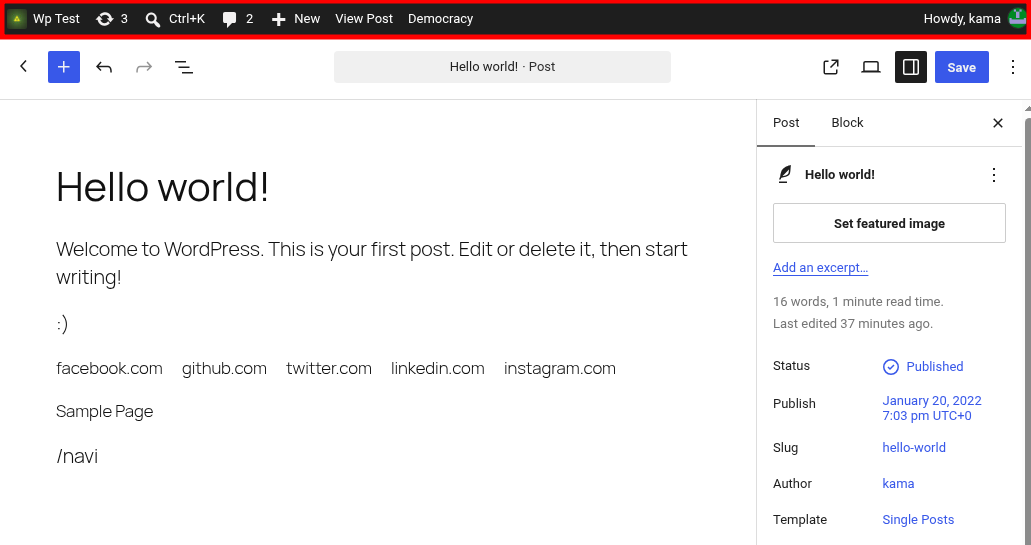
In WordPress 7.1, the top WordPress toolbar is shown in the post editor and site editor by default. It is hidden only in “Full page without distractions” mode.
Enhanced notes and mentions
Notes in the editor are no longer limited to a single discussion for the entire block. In WordPress 7.1, you can:
- create multiple discussions for a single block;
- attach a note to a selected text fragment;
- use bold and italic formatting, code, and links;
- mention another user via
@and send them an email notification; - collapse long notes so they don’t take up the entire sidebar area.
A new public SVG Icon API
In WordPress 7.0, a built-in set of SVG icons appeared for the editor and the “Icon” block. In WordPress 7.1, this system received a public API.
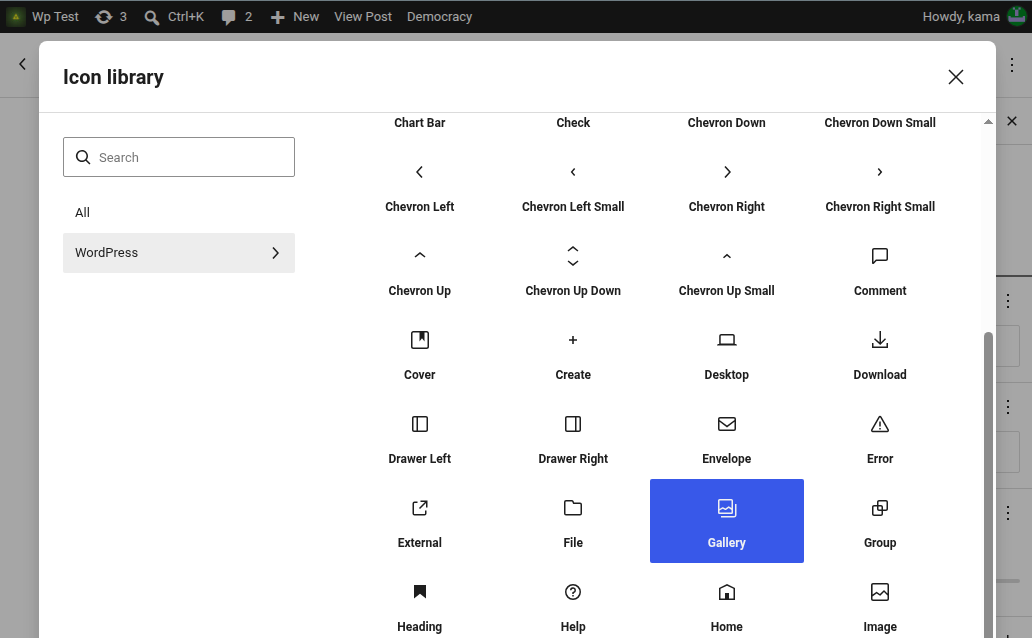
Now a plugin can register an icon collection once and then use it:
- in icon selection for the “Icon” block;
- during server-side rendering via PHP;
- via REST API;
- in the plugin’s own editor interface.
Icon collections and names
Each icon belongs to a collection. The full name consists of the collection and the icon name:
my-plugin/star
The namespace prevents conflicts, for example between core/plus and my-plugin/plus.
First, you need to register the collection, then the icons:
add_action( 'init', 'my_plugin_register_icons' );
function my_plugin_register_icons() {
	wp_register_icon_collection( 'my-plugin', [
		'label'       => 'My Plugin Icons',
		'description' => 'Icons provided by My Plugin.',
	] );

	wp_register_icon( 'my-plugin/star', [
		'label'   => 'Star',
		'content' => '<svg xmlns="http://www.w3.org/2000/svg" viewBox="0 0 24 24">
			<path fill="currentColor" d="M12 2l2.9 6.9 7.1.6-5.4 4.7 1.6 7L12 18l-6.2 3.2 1.6-7L2 9.5l7.1-.6z" />
		</svg>',
	] );

	wp_register_icon( 'my-plugin/heart', [
		'label'     => 'Heart',
		'file_path' => plugin_dir_path( __FILE__ ) . 'icons/heart.svg',
	] );
}
For SVG, you must pass either content, or an absolute file_path, but not both at the same time. The file from file_path is read only on the first content request. Therefore, registration may succeed even with an incorrect path, and the problem will show up later as an empty SVG.
You can remove an individual icon via wp_unregister_icon(), and the collection along with all its icons via wp_unregister_icon_collection().
Rendering icons in PHP
The function wp_get_icon() returns the ready-to-use SVG markup:
echo wp_get_icon( 'my-plugin/star', [
	'size'  => 32,
	'label' => 'Featured',
	'class' => 'my-plugin-star',
] );
Parameters:
size- width and height, default 24 pixels;class- additional CSS classes for the<svg>element;label- an accessible name for screen readers.
If label is not provided, the icon is considered decorative and hidden from screen readers.
If the icon is not registered, the function returns an empty string.
SVG limitations
During registration, WordPress sanitizes SVG via wp_kses(). In WordPress 7.1, only the <svg>, <path>, and <polygon> elements with a limited set of attributes are allowed.
Scripts, event handlers, inline styles, and unsupported SVG elements are removed. The stroke attribute is not allowed yet, so icons built only with lines may render incorrectly. Shapes with fill are supported.
To have the color of an individual icon rendered via wp_get_icon() inherit from the text, you can add fill="currentColor" to <path> when registering or set CSS:
.my-plugin-star {
	fill: currentColor;
}
Icons in the editor and REST API
The “Icon” block groups icons by collections. The interface has a separate tab for each collection and a common tab with all icons. Search works within the selected collection.
Read-only endpoints are available:
GET /wp/v2/icon-collections
GET /wp/v2/icon-collections/{collection}
GET /wp/v2/icons
GET /wp/v2/icons/{collection}
GET /wp/v2/icons/{collection}/{name}
The REST API allows you to retrieve registered collections and sanitized SVG markup, but it does not allow registering or modifying icons. For requests, you need an authenticated user with permission to edit posts, or an equivalent permission for a post type accessible via REST API.
New “Playlist” and “Tabs” blocks
Two new blocks have been added to core that previously usually required a separate plugin.
Playlist (core/playlist)
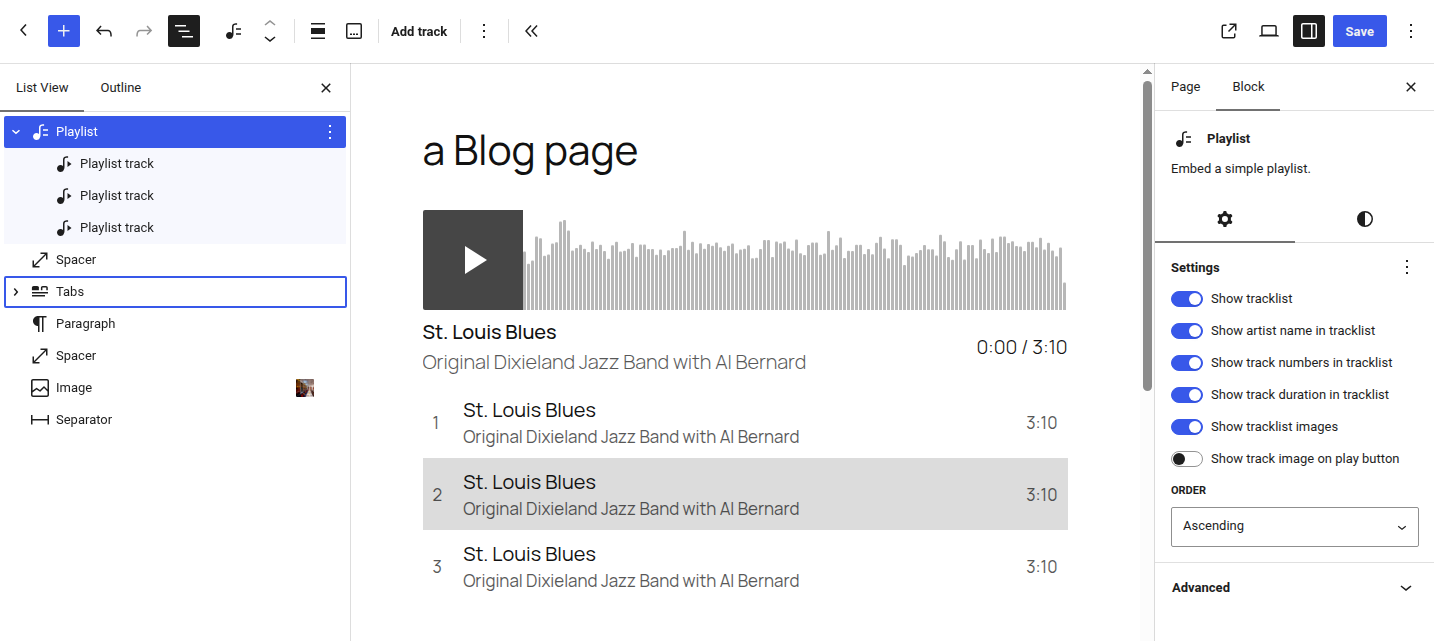
The “Playlist” block combines several audio files into one player. For each track, a waveform form can be displayed to visually show playback.
The internal structure is built from core/playlist and core/playlist-track blocks.
Tabs (core/tabs)
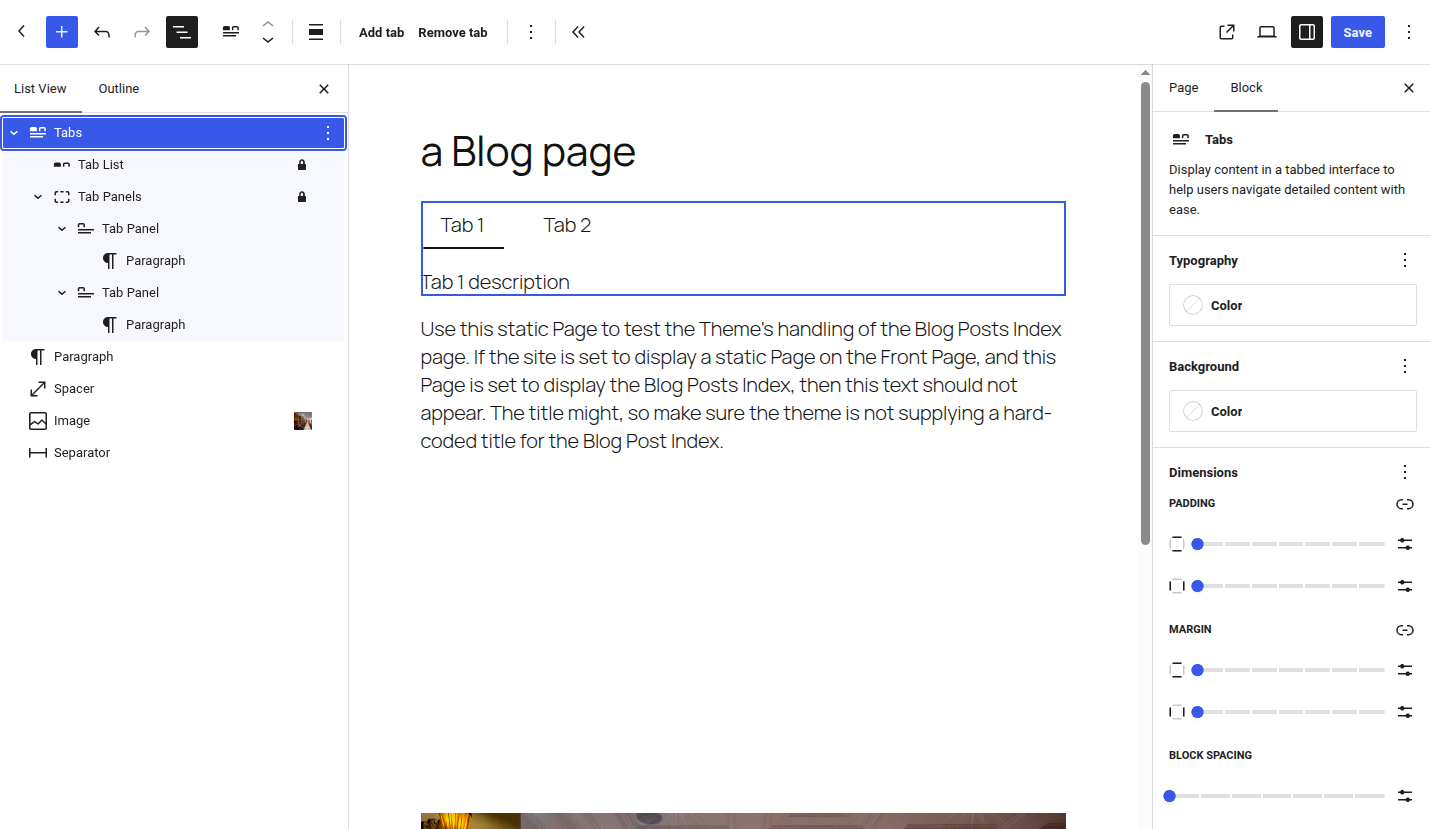
The “Tabs” block allows you to distribute content across switchable panels. It consists of a parent block and internal list blocks, panels, and individual panels: core/tabs, core/tab-list, core/tab-panels, and core/tab-panel.
This is a regular block structure, so you can place other blocks inside the panels.
New Block Supports
Background gradient
A block can separately declare support for a gradient over a background image via background.gradient in block.json. This allows using an image and a gradient together without manually combining them into a single CSS property.
{
	"supports": {
		"background": {
			"backgroundImage": true,
			"backgroundSize": true,
			"gradient": true
		}
	}
}
Minimum width
A new Block Support for minimum width provides compatible blocks with standard min-width control. The block developer no longer needs to create a custom attribute and a separate panel only for this setting.
Editable blocks in the HTML preview
Supported blocks nested within the “Custom HTML” block can remain editable in preview mode.
Text shadow in theme.json
The property textShadow was added to styles.typography; it directly maps to the CSS text-shadow property. It is supported:
- at the global level
- for specific block types and elements, including their states
{
	"version": 3,
	"styles": {
		"typography": {
			"textShadow": "1px 1px 2px rgb(0 0 0 / 30%)"
		},
		"blocks": {
			"core/paragraph": {
				"typography": {
					"textShadow": "none"
				}
			}
		}
	}
}
In WordPress 7.1, this is only a theme.json feature. There is no interface, preset set, and Block Support yet to configure text shadow for an individual block.
Theming administrative interfaces via the WordPress Design System
WordPress 7.1 lays the groundwork for theming administrative React interfaces. New style and script-handle handles have been registered with the name wp-theme.
The stylesheet provides semantic CSS variables for colors, borders, corner rounding, sizes, and other parts of the interface. A plugin can add wp-theme as a dependency and use tokens instead of hard-coded values:
.my-plugin-card {
	background: var(--wpds-color-background-surface-neutral-strong);
	color: var(--wpds-color-foreground-content-neutral);
	border: var(--wpds-border-width-xs) solid var(--wpds-color-stroke-surface-neutral-weak);
	border-radius: var(--wpds-border-radius-lg);
	padding: var(--wpds-dimension-padding-2xl);
}
The package @wordpress/theme exports the React component ThemeProvider. It allows you to set primary colors, the degree of rounding, and the cursor style for a specific component tree:
import { ThemeProvider } from '@wordpress/theme';
import { Card } from '@wordpress/ui';

function Application() {
	return (
		<ThemeProvider
			color={ {
				primary: '#3858e9',
				background: '#11004d',
			} }
			cornerRadius="pronounced"
		>
			<Card.Root>
				<Card.Content>Plugin content</Card.Content>
			</Card.Root>
		</ThemeProvider>
	);
}
The original primary and background colors, the cornerRadius presets, the cursor.control setting, and the isRoot flag are supported. The color scale is generated automatically.
This is only the foundation for a future redesign of the administrative area. It does not mean that all of wp-admin in WordPress 7.1 has already been migrated to the new design.
Configuring screens for the Site Editor
For page screens, template screens, template part screens, and pattern screens, four View Config configuration filters have been added:
- [get_entity_view_config_posttype_page]() — ERROR: not_found
- [get_entity_view_config_posttype_wp_template]() — ERROR: not_found
- [get_entity_view_config_posttype_wp_template_part]() — ERROR: not_found
- [get_entity_view_config_posttype_wp_block]() — ERROR: not_found
Through them, a plugin can change:
default_view- view type, sorting, and visible fields;default_layouts- layout variants available to users;view_list- preconfigured views in the sidebar;form- form fields and the order of the DataForm quick edit form.
For example, the following code makes a grid view the default for pages, sorts posts by title, and adds a date field:
add_filter( 'get_entity_view_config_posttype_page', 'my_plugin_filter_page_view_config' );

function my_plugin_filter_page_view_config( $data ) {
	$patch = array(
		'default_view' => array(
			'type'   => 'grid',
			'sort'   => array(
				'field'     => 'title',
				'direction' => 'asc',
			),
			'fields' => array( 'date' ),
		),
	);

	$data->merge( $patch, 1 );

	return $data;
}
The filters apply to the new Site Editor screens based on DataViews and DataForm. They do not replace hooks for classic post tables in wp-admin.
Accessibility improvements
Public tooltip functions
For administrative interfaces, the functions wp_get_tooltip() and wp_get_toggletip() have been introduced.
wp_get_tooltip() adds an accessible name to a control that is represented only by an icon. wp_get_toggletip() creates a button that opens a more detailed explanation. The first behaves like a tooltip, the second like a controlled dialog popover.
echo wp_get_tooltip(
	__( 'Show or hide the menu', 'my-plugin' ),
	array(
		'icon' => 'dashicons-menu',
	)
);
CSS is loaded globally in the admin area. If the tooltip is used on the site, the style must be enqueued explicitly:
wp_enqueue_style( 'wp-tooltip' );
wp_enqueue_script( 'wp-tooltip' );
A visible persistent label is still preferred over a tooltip. The new functions are intended for tight interfaces where placing a full text label is not possible.
Changed markup for post tables
In post lists, pages, and custom post types, the row header is now marked up as <th scope="row">, and the cell with the selection checkbox becomes a regular <td>. This makes the table clearer for screen readers.
Improving the Abilities API
Abilities API appeared in WordPress 6.9. It allows plugins to register separate actions with formally described input and output data, permission checks, and a single way to execute them. Such actions can use the REST API, automation tools, and AI clients.
In WordPress 7.1, the API has become more convenient for validation, auditing, and programmatic discovery of capabilities.
Additional validation of input and output data
The WP_Ability class validates data against a JSON Schema. Now plugins can add rules that cannot be expressed using the schema implementation currently used:
wp_ability_validate_input- additional input validation;wp_ability_validate_output- additional output validation.
The handler must return true or a WP_Error object. If the standard validation has already returned an error, it must be preserved:
add_filter( 'wp_ability_validate_input', 'my_validate_send_message_input', 10, 3 );

function my_validate_send_message_input( $is_valid, $input, $ability_name ) {
	if ( 'my-plugin/send-message' !== $ability_name || is_wp_error( $is_valid ) ) {
		return $is_valid;
	}

	if ( empty( $input['recipient'] ) || ! str_ends_with( $input['recipient'], '@example.com' ) ) {
		return new WP_Error(
			'invalid_recipient',
			__( 'The recipient must use the example.com domain.', 'my-plugin' )
		);
	}

	return true;
}
The schema keys validate_callback and sanitize_callback, familiar from the REST API, are not executed inside the Abilities API. For additional validation, use the new filters.
An action event on each ability invocation
A new action wp_ability_invoked is called at the very beginning of WP_Ability::execute():
do_action( 'wp_ability_invoked', $this->name, $input, $this );
It fires before data normalization, schema validation, permission checks, and the short-circuit filter. Therefore, the event occurs even for an incorrect or forbidden invocation.
This is useful for auditing, telemetry, tracing, and counting invocations. Input data at this stage is raw and may contain personal or secret information, so you should not indiscriminately log $input.
The existing actions wp_before_execute_ability and wp_after_execute_ability now additionally receive the WP_Ability object as the last argument. Existing handlers will continue to work, but to receive the new argument you need to change the callback signature and the $accepted_args value.
More information about the current user
Ability core/get-user-info now returns additional fields:
first_name;last_name;nickname;description;user_url.
Through the new input parameter fields, you can request only the properties you need:
$ability = wp_get_ability( 'core/get-user-info' );

$result = $ability->execute( [
	'fields' => [
		'display_name',
		'first_name',
		'last_name',
	],
] );
An unknown field name is rejected by the schema before the callback runs. The access rule has not changed: the user must be authenticated.
core/get-environment-info also supports the fields parameter. The schemas core/get-site-info, core/get-user-info, and core/get-environment-info have been unified into a single format and include clear names and descriptions of properties. This makes it easier for REST, MCP, WebMCP, and AI clients that build an interface or select data according to a schema.
Typing of REST request input data
In GET and DELETE requests, query string values arrive as strings. Previously, an ability could receive a string "10" instead of integer 10, or a string "true" instead of a boolean value.
WordPress 7.1 converts values to types from input_schema before running the permission callback and the main callback. For example:
?input[limit]=10&input[featured]=true&input[ids]=1,2,3
with the corresponding schema will become:
[
	'limit'    => 10,
	'featured' => true,
	'ids'      => [ 1, 2, 3 ],
]
This eliminates the need to manually convert types in every callback.
jQuery UI updated to version 1.14.2
WordPress updated jQuery UI from version 1.13.3 to 1.14.2. The new version no longer supports Internet Explorer and the old Microsoft Edge, in line with the current WordPress browser support policy.
For compatibility, WordPress sets jQuery.uiBackCompat = true. This allows the old jQuery UI 1.11 API to continue working mostly as before.
However, the following internal properties and methods have been removed:
$.fn._form;$.ui.ie;$.ui.safeActiveElement;$.ui.safeBlur.
The WordPress core does not use these properties and methods.
Changes in @wordpress/components
Field heights are now always 40 pixels
Form components from @wordpress/components now have a default height of 40 pixels. Previously, a developer could enable the new size in advance via the __next40pxDefaultSize property. In WordPress 7.1, this property no longer does anything.
This change affects, among others, TextControl, SelectControl, NumberControl, SearchControl, ComboboxControl, UnitControl, RangeControl, ToggleGroupControl, TreeSelect, FontSizePicker, and a number of other components.
Migrating from Emotion to SCSS Modules
WordPress is gradually moving components of the @wordpress/components package from Emotion to SCSS Modules.
Emotion is a CSS-in-JS library: styles are described in JavaScript via css, cx(), or styled, and the required CSS classes are generated during the app’s runtime. This is convenient for dynamic styles, but it increases the amount of JavaScript and couples components to a specific library.
SCSS Modules use regular .module.scss files. Styles are created during the build, and class names are automatically isolated, so they do not conflict with styles from other components. This approach reduces the amount of JavaScript executed and makes CSS more predictable.
Most plugins won’t notice the changes. However, the css prop on the View component no longer applies styles. Use className or style instead:
<View className="my-plugin-view" />
When combining Emotion styles via cx(), the cascade order is preserved when fragments are passed into a single call to css():
const classes = cx(
	css( baseStyles, condition && overrideStyles ),
	className
);
In WordPress 7.1, the migration affects Divider, Surface, Truncate, View, Flex, and Spacer. In future versions, this list will be expanded.
Removed the Navigation component
Deprecated Navigation and its child components have been removed from @wordpress/components. They were marked as deprecated in WordPress 6.8. The Navigator component remains in the package.
This is a breaking change: importing the removed component may cause a JavaScript error and stop your plugin interface from loading.
Also removed is the experimental utility __experimentalApplyValueToSides. The BoxControl itself continues to work.
--