Translations (Localization)
In this article, we will discuss how to create and connect translation files, and then translate text in plugins and themes. Also, here I briefly considered some theoretical points, common mistakes, how to work with the Poedit program, and I will give some advice on translations.
List of locales for all languages see here.
What to Translate?
Before moving on to translation, let's determine what needs to be translated, as it affects how to translate.
Translating a Theme/Plugin from the WordPress Catalog
For such translation, you need to use the translate.wordpress.org website. What needs to be done:
- Log in.
- Choose the required translation language.
- Find the plugin/theme that needs to be translated.
- Translate directly on the website.
-
After your translation is reviewed, you will see the translation updates for the plugin/theme in your WordPress site admin panel.
Note: The update will appear only after at least 95% of the entire translation is ready. To expedite the review, you can write to the forum in the "translations" section or to the Russian-language slack in the
#translationschannel. - Update. Translation done!
Note: Not all plugins in the catalog support translation through translate.wordpress.org. In such cases, translation needs to be done as usual (read the next point).
Translating a Theme/Plugin NOT from the WordPress Catalog
In this case, you need to:
- Open the plugin folder and find the translation files in it. These are the files
.po,.pot,.mo. They are usually located in thelanguagesorlangfolders. - Then proceed to "Stage 2" in this article. That is, you will need to create a
.motranslation file. To create such a file, use the Poedit program and the.potfile (if available in the plugin) or the.pofile (upload this file to Poedit and create the translation in your language, then save it with the correct name). Or you can use the "Loco Translate" plugin to create a.mofile, it's even more convenient (details not described in this article).
Translating Your Own Theme/Plugin
How to do this is described below in "Stage 1" and "Stage 2".
If you plan to place your plugin/theme in the WordPress catalog, it is strongly recommended to do the translation through translate.wordpress.org. More details about this can be found in the handbook (English) (details not described in this article).
How Translation Works in WordPress (Theory)
We need to start with the most important thing - translation files. There are three types: .mo .po .pot. PHP works only with the .mo file, while .po and .pot are for humans and translation programs.
-
.pot file (Portable Object Template) — contains the original translation strings (without translation). This is a translation template. The POT file serves as the basis for creating a
.pofile (for creating translations into any language). The POT file is not a mandatory file; translation can be done without it - it is just a template. How to create a.potfile read below. -
.po file (Portable Object) — contains the original translation strings and the translation of those strings. It can be edited in any text editor or in a program (for example, Poedit, which we will use below). A
.mofile is automatically created from the.pofile. -
.mo file (Machine Object) — a compiled version of the PO file. It contains binary data that WordPress parses and creates translation data for individual strings. It is used for translating themes/plugins and is imported into GNU gettext.
- .l10n.php file — a simple PHP array where the key is the original string and the value is the translation.
In WordPress, the .mo or .l10n.php file is used for translation. During page generation, this file is included — a PHP object with translation strings is created from it and placed in memory. Then, when using translation functions in the code, the requested string's translation is taken from this object.
With WP 6.5, a new, faster implementation of translations appeared, where translations are stored in a PHP array in the file: .l10n.php. In this case, the translation is simply read from the array.
Translating Strings
To translate strings in a theme/plugin, we need to:
-
Create a
.moor.l10n.phpfile and place it in the theme/plugin folder. Or in the global translation folder.To create a
.l10n.phpfile from a.pofile, use wp i18n make-php. -
Include the
.moor.l10n.phpfile in the theme/plugin using one of the functions:If the file is placed in the global folder, it does not need to be included separately; WP will do this automatically.
The
.l10n.phpfile will be used automatically if it exists and is in the same folder as the.mofile. It has a higher priority for use. - Use special translation functions: __(), _x(), _n() and others.
It is important to understand that when including the .mo or .l10n.php file, an identifier (parameter $domain) is assigned to it, and this identifier (domain) is specified for the string translation functions. The domain links the .mo file with the translation functions. That is, when translating, we specify from which MO file to get the translation of the specified string. Example:
// include the MO or .l10n.php translation file and assign it an ID — mydomain:
load_theme_textdomain( 'mydomain', get_template_directory() . '/languages' );

// translate — again specify ID — mydomain:
echo __( 'Comment:', 'mydomain' );
Logic of Loading Translations
With WP 6.7, translation files are loaded "just-in-time" (JIT) – at the moment of the first call to the translation function.
The logic is as follows:
-
Functions that previously loaded the translation file now only register an additional path where the translation file for the domain may be located.
-
Then, on the init hook, the core collects all such paths and understands where to look for translations.
-
After that, on the init hook, translations start to work.
-
Now, when calling a translation function, for example,
__(), the translation data for the translation domain is loaded "on the fly" once (if it has not been loaded yet), and the string is translated. - If the translation file was not needed at all in the request (the translation function was not called anywhere), it is not loaded.
Thus, JIT saves server resources: files are pulled in only when they are actually needed.
If you call any translation function __(), _e() before the init hook, you will NOT get the string translation, but will receive a doing_it_wrong error - see _load_textdomain_just_in_time().
Stage 1: Create Your Plugin and Translate It
If you already have a ready-made theme/plugin that just needs to be translated, go directly to the translation (Stage 2).
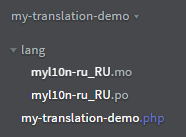
To understand the translation process, let's create a very simple plugin and translate it into Russian. Let's call the plugin "my-translation-demo". Here's the structure of the plugin:
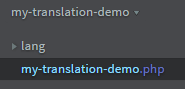
- In the WordPress plugins folder, create a folder
my-translation-demo:/plugins/my-translation-demo. - In this folder, create a
langfolder:/my-translation-demo/lang. - Create the file
my-translation-demo.php:/my-translation-demo/my-translation-demo.php. - Add the following code to the created PHP file:
The plugin is ready!
Go to the admin panel, activate the plugin, and go to the plugin page.

The plugin uses all the translation functions available in WordPress. It also includes a non-existent .mo translation file myl10n-ru_RU.mo. After creating the .mo file, the plugin will be translated (we will create it below).
Localizing the Plugin Name
Pay attention to the parameters in the plugin headers. They need to be specified correctly for the translation to work for the plugin name and description on the plugin page.
 * Text Domain: myl10n
 * Domain Path: /lang
Also, for this, we add the Name and Description in the translation functions so that the parser can find them.
// strings to be translated for the plugin headers, so they are included in the .po file.
__( 'Demo WordPress translation', 'myl10n' );
__( 'Test plugin for learning how to create translations in WordPress', 'myl10n' );
Also, WordPress uses the Text Domain: parameter to search for the translation file in the global translation folder. There, the file should be named DOMAIN-TRANSLATION_LOCALE.mo.
Stage 2: Translation. Creating PO MO Files (for the Required Locale)
To create an MO file, we need to have a ready-made PO file, so the whole task comes down to creating a PO file.
There are several ways to create a PO file. We will look at working with the Poedit program.
You can create a PO file through Poedit, but we will create it manually - it's faster and easier.
1) Create a PO file
To do this, simply create a text file with the extension .po in the lang folder of our plugin. The file should be named DOMAIN-LOCALE.po, for example, myl10n-ru_RU.po. (The file encoding should be UTF-8).
This specific file naming is required by the function load_plugin_textdomain() and the translation language (Russian).
myl10n- the translation domain used in the function load_plugin_textdomain().ru_RU- the translation language: locale in WordPress when switching to the Russian language.
For a theme, for example, the file name should be LOCALE.po, see details below.
Why it's convenient to create a .po file manually rather than using the Poedit program?
Because it's faster: in this case, you can simply copy the code (from step 2) into the PO file, adjust a few lines for your plugin's name, email, team name, and then import that file into Poedit. Then click "Extract from sources" and start translating.
Translation settings can be changed in the PO file itself, no program is needed for that. Or you can adjust them later in the Poedit program.
As an example, I will describe the process of creating a PO file through Poedit:
- Open Poedit.
- Choose:
File > New.... - In the window that appears, select the language for translation.
- The window will disappear, and we will be left wondering "what's next?"
- Next, click the Save button, in the file explorer window, navigate to the theme folder, enter the
langfolder, enter the file namemyl10n-ru_RU.po, and click OK. - The window disappears again, and we are left wondering "what do we do now?"
-
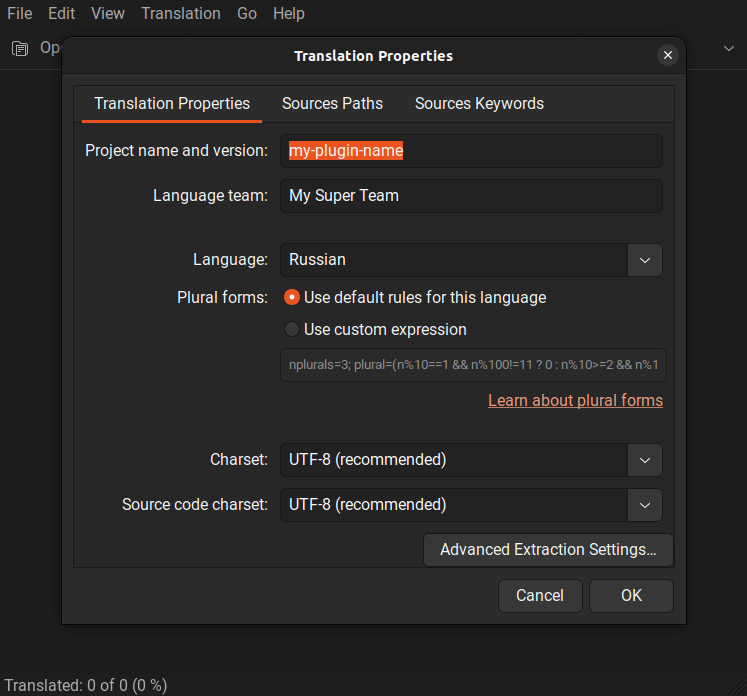
Now, click the button: Extract from sources. A window will open where you need to set the translation settings for the PO file - this includes everything written in the code for the PO file above:
- project name
- project team
- encoding
- folders to collect translation strings
- keywords to search for translation strings (which you also need to know).
In general, you will need to work on this and not make any mistakes.
-
After the settings are set, click "OK".
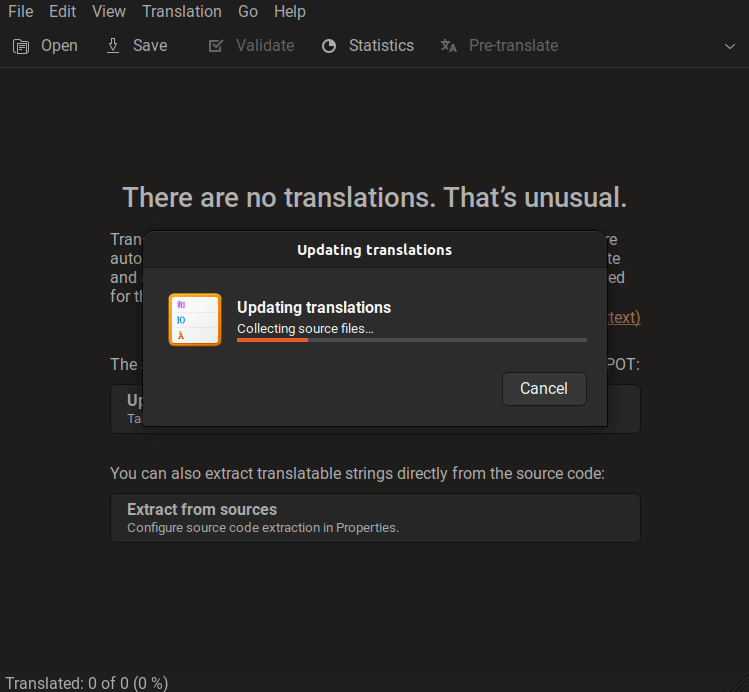
- Then wait for the translation strings to be collected from the project files, and you will enter the string translation window (as shown in the screenshot above).
2) Set up the translation
Open the file and copy the following text into it:
Important: the encoding when editing the text file should be UTF-8. To avoid worrying about this, edit it in an editor like Sublime Text, Notepad++, or your IDE.
msgid ""
msgstr ""
"Project-Id-Version: my-plugin-name\n"
"Last-Translator: Myname <[email protected]>\n"
"Language-Team: My Super Team\n"
"Language: ru\n"
"Content-Type: text/plain; charset=UTF-8\n"
"Plural-Forms: nplurals=3; plural=(n%10==1 && n%100!=11 ? 0 : n%10>=2 && n%10<=4 && (n%100<10 || n%100>=20) ? 1 : 2);\n"
"X-Poedit-SourceCharset: UTF-8\n"
"X-Poedit-KeywordsList: __;_e;_x:1,2c;_ex:1,2c;_n:1,2;_nx:1,2,4c;_n_noop:1,2;_nx_noop:1,2,3c;esc_attr__;esc_attr_e;esc_html__;esc_html_e\n"
"X-Poedit-Basepath: ..\n"
"X-Poedit-SearchPath-0: .\n"
"X-Poedit-SearchPathExcluded-0: node_modules\n"
#"X-Poedit-SearchPathExcluded-0: js\n"
#"X-Poedit-SearchPathExcluded-1: css\n"
See also the format/syntax of the PO file in the documentation.
Explanation of parameters:
Project-Id-Version- the name and version of the project.Last-Translator- the name and email of the translator.Language-Team- the name of the translation team.Language- the language for which the file is translated.Plural-Forms- plural form.X-Poedit-KeywordsList- the names and parameters of functions, strings of which will be taken for translation. (all possible WordPress functions are listed here).X-Poedit-Basepath- the main folder. Files in it and its subfolders will be scanned for translation strings...here means that the main folder is one level above the folder of the current file. Since the .po file is in the/langfolder, the folder one level above is the root folder of the plugin.X-Poedit-SearchPath-0- folders (relative to the main folder) to search for files..here means to search all files.X-Poedit-SearchPathExcluded-0- here you can specify a folder (relative to the main one) where files do not need to be searched.
All of these parameters can be changed from the Poedit program at any time. To do this, go to Catalog > Properties in Poedit.
3) Load the file into Poedit
First, you need to [download](https://poedit.net/download) and install it. The free version allows you to do everything we need.
Open our still empty .po file in the installed Poedit program.
4) Translate
Select "Update from Code".
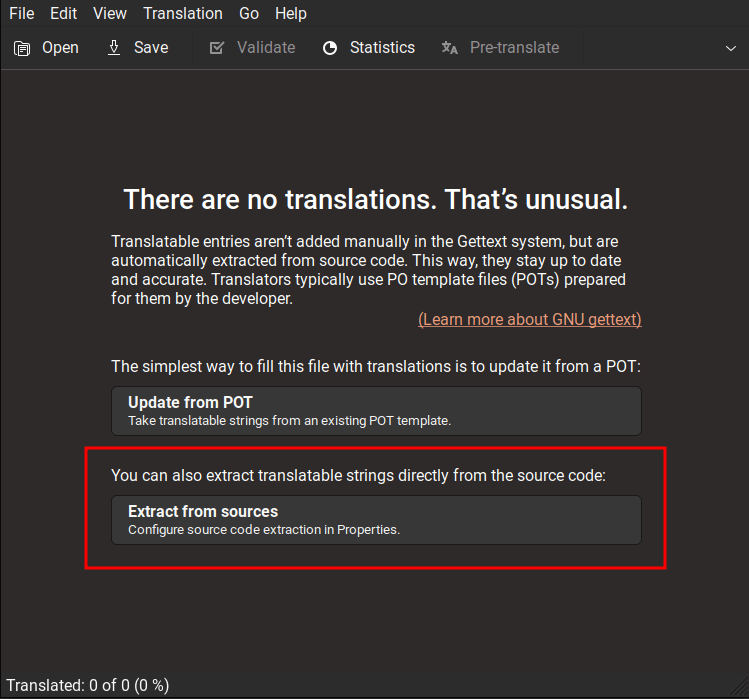
In the window that appears, change the translation settings (optional) and click OK.
Wait for the program to scan the code and collect all the translation strings.
Translate, click "Save".
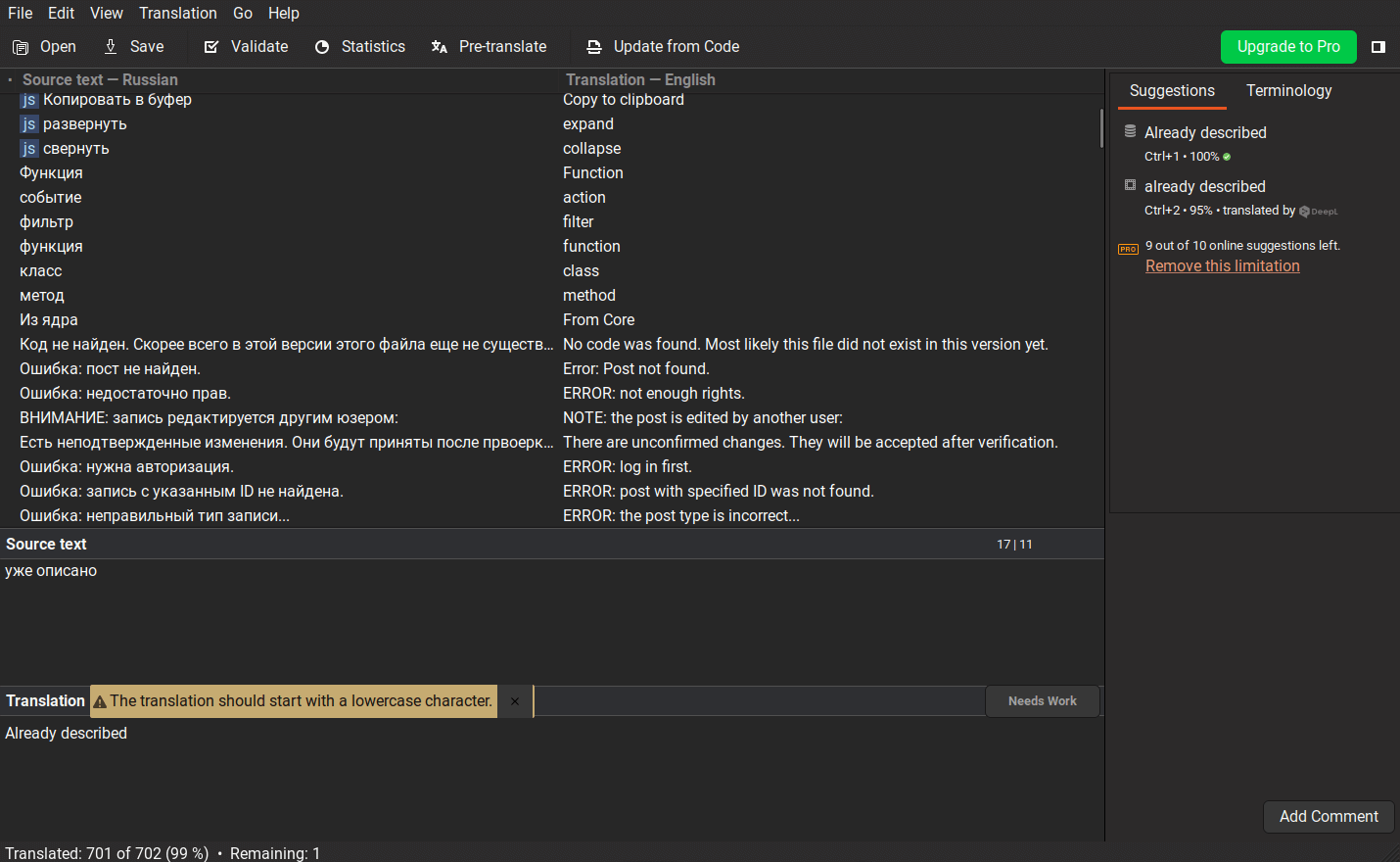
5) Done!
That's it, the MO file is ready! When you click "Save", it will automatically be created next to the .po file (with the same name but with the .mo extension).
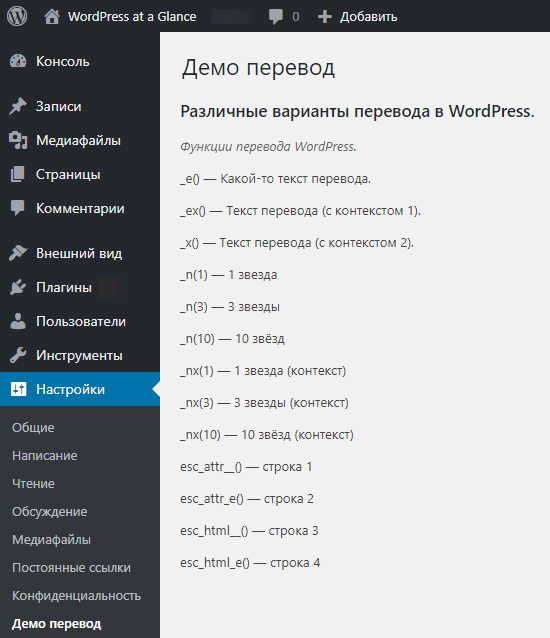
If you now go to the plugin page, you will see that all the strings are translated:
Updating the translation (when the code changes)
Here's how simple it is:
- Open Poedit.
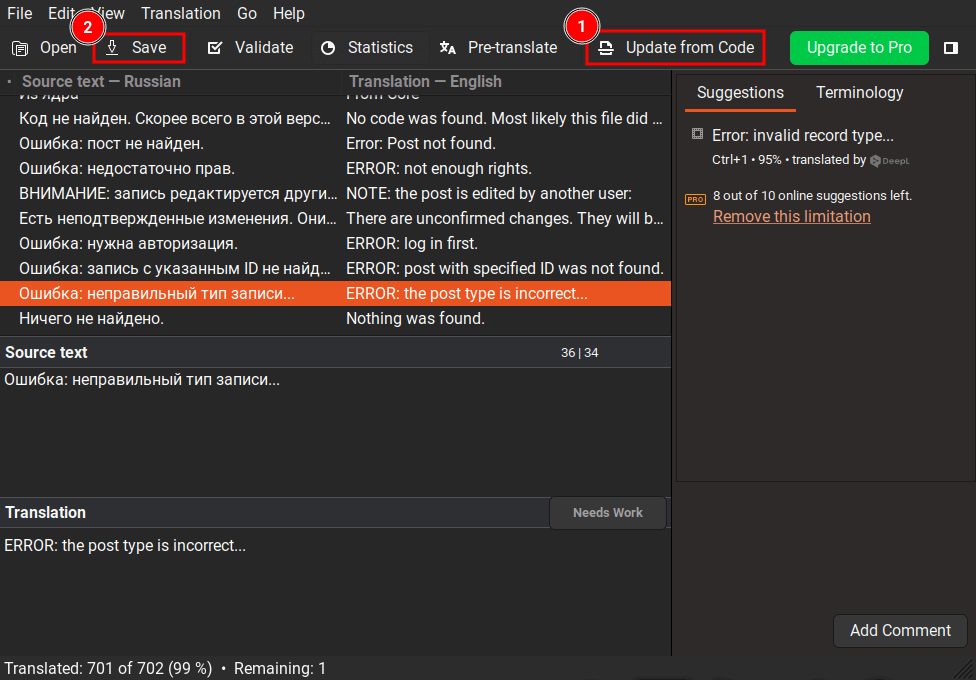
- Drag any PO file from the project into it and click "Update from code" (button on the toolbar).
- Translate the new strings and click "Save" (button on the toolbar).
- The translation is updated! You can close Poedit.
Creating a POT file
A .pot file is a translation template. It is a copy of the .po file, but with no strings translated yet. That is, all translation strings are obtained from the project files, but nothing has been translated yet.
From the above, - to create a POT file, you need to go through the entire process of creating a .po file, but at the end, don't translate anything, and go to "File > Save as" and save the file with the extension .pot.
Creating a .pot from a .po
If there is already a .po file in the project, you can create a .pot from it. Copy the .po file and change its extension to .pot.
This is a rough method, but such a file with translated strings can also be used as a template for creating a translation in any language (at least that's how Poedit works).
For reliability, the created .pot can be updated through Poedit. Open it in Poedit, click "Update from code", and save it.
Why do we need a POT file?
In order to have some unified file that always contains up-to-date translation strings. To use it as a basis for creating a translation in any language.
For example, if PO and MO translation files are placed in a global translation folder, we cannot drop the PO file into the program and click "Update from code", because in the PO file, the path to the plugin files will be incorrect (or they may not be there at all) and the translation strings will not be able to be updated. In this case, a POT file is needed, from which a translation can be created for any language.
The POT file should always be in the plugin's folder. IMPORTANT: when the code changes, you always need to update the translation strings in it, so we always have all the up-to-date strings for translation in the template for translations.
I'll repeat: if the PO file is in the plugin folder, then a POT file is not needed, a translation can be created from any PO file.
Translation Functions
Connecting the .mo Translation File
How to connect the MO file in the plugin, which is already present in the plugin code above. Here, I will focus on the WordPress functions for connecting this file. The functions are:
- load_plugin_textdomain( $domain, false, $plugin_rel_path )
- Connects the MO file from the plugin. It's a wrapper for
load_textdomain(). It first looks for the MO file in the shared plugins translation folder:/wp-content/language/plugins. The file should be named asDOMAIN-LOCALE.mo. - load_muplugin_textdomain( $domain, $plugin_rel_path )
- Connects the MO file from a MU plugin. It's a wrapper for
load_textdomain(). It first looks for the MO file in the shared plugins translation folder:/wp-content/language/plugins. The file should be named asDOMAIN-LOCALE.mo. - load_theme_textdomain( $domain, $path )
- Connects the MO file from the theme. It's a wrapper for
load_textdomain(). It first looks for the MO file in the shared themes translation folder:/wp-content/language/themes. The file should be named asLOCALE.mo(when the file is inside the theme) andTHEME_FOLDER-LOCALE.mo(when the file is in the shared folder). - load_child_theme_textdomain( $domain, $path )
- Connects the MO file from the child theme. It's a wrapper for
load_theme_textdomain(). - load_textdomain( $domain, $mofile )
- Connects the MO file from any location (the full path to the MO file, including the file name, needs to be specified).
Let's consider examples of connecting MO files.
It is assumed that the connection code will be located in the main file of the plugin/theme or in a file located in the root directory of the plugin/theme. If not, then __FILE__ should be replaced with the corresponding path.
// Plugin translation file.
// The file should be named: DOMAIN-LOCALE.mo, for example: myl10n-ru_RU.mo
add_action( 'plugins_loaded', function(){
	load_plugin_textdomain( 'my-plugin', false, dirname( plugin_basename( __FILE__ ) ) . '/languages' ) );
} );

// MU Plugin translation file.
// The file should be named: DOMAIN-LOCALE.mo, for example: myl10n-ru_RU.mo
load_muplugin_textdomain( 'my-plugin', dirname( plugin_basename( __FILE__ ) ) . '/languages' ) );

// Theme translation file.
// The file should be named with the current locale, for example: ru_RU.mo
add_action( 'after_setup_theme', function(){
	load_theme_textdomain( 'my_theme', get_template_directory() . '/languages' );
});

// Any translation file
// Connect the .mo file (file name: ru_RU.mo or other, depending on the locale)
add_action( 'plugins_loaded', function(){
	$mo_file_path = dirname( __FILE__ ) . '/lang/'. get_locale() . '.mo';
	load_textdomain( 'mytranslate', $mo_file_path );
}
It is not necessary to connect functions to hooks, but in the examples, I have done it as recommended.
Note: If the translation file is placed in the global translation folder, these functions may not be necessary. WordPress automatically connects translation files from the global folder based on the Text Domain: parameter in the plugin's header.
See also: all functions related to connecting MO files.
Localization Functions
How to use translation functions is already present in the plugin code above. Here, I will describe each function (read detailed descriptions in the function reference).
- __( $text, $domain )
- Translates the specified text and returns it for processing.
- _e( $text, $domain )
- Translates the specified text and displays it on the screen.
- _x( $text, $context, $domain )
- Translates the specified text with the specified context and returns it for processing.
- _ex( $text, $context, $domain )
- Translates the specified text with the specified context and displays it on the screen.
- _n( $single, $plural, $number, $domain )
- Retrieves the translation of the singular or plural form of the string based on the number provided (1 comment, 2 comments).
- _nx( $single, $plural, $number, $context, $domain )
- Retrieves the translation of the singular or plural form of the string with the specified context.
- _n_noop( $singular, $plural, $domain )
- A no-op function. Equivalent to
_n(). Used when it is necessary to define translation strings for plural forms but use them later in the code. The result returned by this function needs to be processed by the translate_nooped_plural() function. The result of this function, for example, can be conveniently used in parameters when we do not know the number in advance and need to do the translation later. - _nx_noop( $singular, $plural, $context, $domain )
- Similar to _n_noop(), but with context.
- esc_attr__( $text, $domain )
- Translation for HTML attribute values. A shortcut for
esc_attr( __() ). - esc_attr_e( $text, $domain )
- Same as
esc_attr__(), but immediately displays the result on the screen. - esc_html__( $text, $domain )
- Translates text that may contain HTML tags. A shortcut for
esc_html( __() ). - esc_html_e( $text, $domain )
- Same as
esc_html__(), but immediately displays the result on the screen.
Common Mistakes in Using Localization Functions
#1 Do Not Use Variables/Constants in Translation Function Parameters
This is because programs can parse only strings, not variables. Programs do not analyze what is in the specified variable; they simply scan the code as text and extract strings for translation...
// Yes
_e( 'Hello World!', 'mydomain');

// No
_e( $string, 'mydomain' );
_e( 'Hello World!', $domain );
_e( 'Hello World!', DOMAIN );
#2 Do Not Use HTML in Translation Strings (If Possible)
For example, if you specify <div> in a translation string and the translator makes a mistake, the HTML markup can "break". Or if you specify a link <a>, the translator may replace it with their own or simply write it incorrectly. Any HTML tag may remain unclosed, causing a very unpleasant layout bug.
In 90% of cases, HTML tags can and should be moved outside the translation string. Let's consider a few examples:
// Yes
echo '<h1>'. __( 'Hello World!', 'mydomain' ) .'</h1>';

// No
_e( '<h1>Hello World!</h1>', 'mydomain' );
// Yes
echo str_replace( '<a>', '<a href="http://example.com/portfolio">', __( 'See <a>my portfolio</a>', 'mydomain' ) );

// No
_e( 'See <a href="http://example.com/portfolio">my portfolio</a>', 'mydomain' );
#3 Do Not Split Phrases into Separate Words
When translating strings, it should be as clear as possible what the phrase is about. But if you split the string into parts, individual words may become unclear:
// Yes
echo sprintf( __( 'I am %d today', 'mydomain' ), $years );

// No
echo __( 'I am ', 'mydomain' ) . $years . __( ' today', 'mydomain' );
#4 Do Not Leave Spaces at the Beginning/End of the String
When translating, spaces at the ends are often NOT noticeable and can be missed, resulting in the translation not working. Therefore, it is better to write the necessary spaces in the code.
// Yes
_e( 'Book name:', 'mydomain' ) . ' ' . $book_name;
// Yes
_e( 'Book name:', 'mydomain' ) ." $book_name";

// No
_e( 'Book name: ', 'mydomain' ) . $book_name;
Plural Forms Translation
In the plugin above, there is already an example of how to translate strings that use numbers. Here, I will emphasize this.
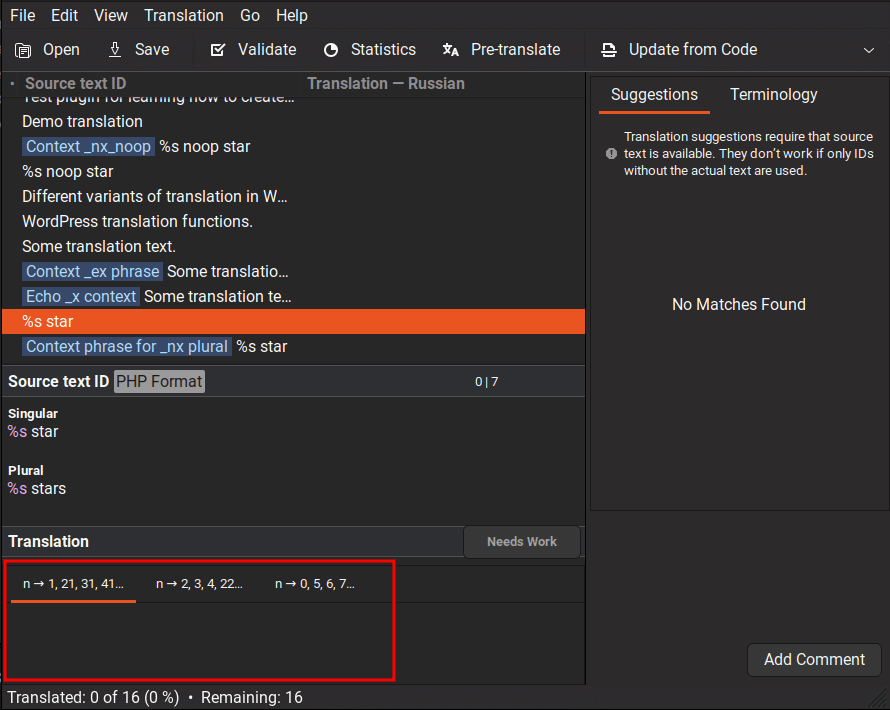
For translating strings with numbers, where different translations are needed depending on the number, WordPress uses the function _n( $single, $plural, $number, $domain ) or _nx() (with context). It will return a different string based on the specified number. For example:
printf( _n( '%s star','%s stars', 1, 'myl10n' ), 1 );   //> 1 star

printf( _n( '%s star','%s stars', 3, 'myl10n' ), 3 );   //> 3 stars

printf( _n( '%s star','%s stars', 10, 'myl10n' ), 10 ); //> 10 stars
However, for all this to work correctly, the following needs to be done:
-
In the settings of the .po file, correctly specify the plural form. We specified it in the
Plural-Formsparameter:"Plural-Forms: nplurals=3; plural=(n%10==1 && n%100!=11 ? 0 : n%10>=2 && n%10<=4 && (n%100<10 || n%100>=20) ? 1 : 2);\n"

See also: Plural-Forms options for different languages.
-
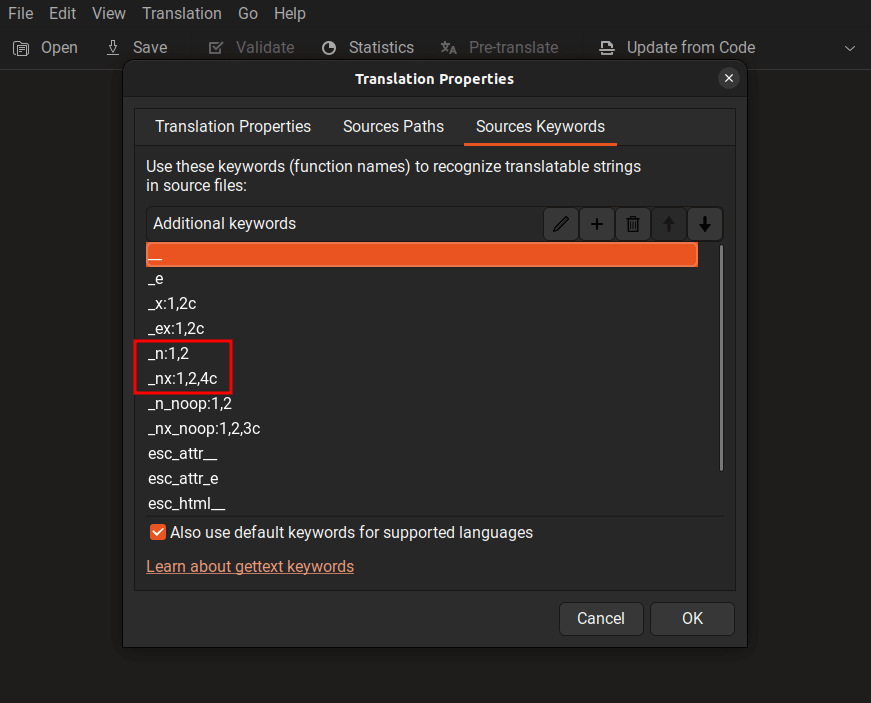
In the .po file settings, correctly specify the search function templates:
_n:1,2- for the_n()function. 1 and 2 are the function parameters for singular and plural numbers._nx:1,2,4c- for the_nx()function. Here, 4c means that the 4th parameter of the function is the context string.
-
When translating, correctly translate the strings. For the Russian language, three variants need to be specified for translating a single string.
In Conclusion
Placement of Translation File in the Global Folder
In WordPress, there is a common folder for translation files: /wp-content/languages. It contains translation files for WordPress itself, and it can also contain translation files for themes and plugins (this works by default in WordPress).
All MO file connection functions (except load_textdomain()), first check for the presence of the translation file in the common folder, and only then look for it in the plugin or theme folder. This is somewhat similar to the template file hierarchy, but here it is the hierarchy of translation files...
Common translation folders for:
- plugins
/wp-content/languages/plugins/DOMAIN-LOCALE.mo. - themes
/wp-content/languages/themes/DOMAIN-LOCALE.mo.
In such common folders, for example, the translation file for a plugin located in the WordPress plugin directory is uploaded and updated. You may have seen translated plugins that do not have translation files (this is exactly the case). As I mentioned at the beginning of the article, plugins from the directory can be translated via the site translate.wordpress.org.
Note: If the translation file is present in the global folder, it is not necessary to connect it in the plugin using the load_(plugin/theme)_textdomain() functions! WordPress automatically connects it based on the Text Domain: parameter in the plugin's header.
Translation-related Terms
Some terms that you need to know. These are the most basic ones (some functions and hooks in WordPress are named after the abbreviations of these terms):
-
internationalization (i18n) — the process of modifying software so that it is not tied to one language. That is, it is the whole set of core WordPress functions and classes that allow translating the site into different languages.
-
localization (l10n) — the process of adding appropriate resources to your software to support a specific language/locale. That is, it is the process of translating into different languages.
- locale — a combination of language and dialect in a region. Usually, a locale simply refers to a language, for example, Russian. But English, for example, can be English (U.S.) or English (UK) - the language is the same, but the locales are different... A locale is defined as
LANGUAGE_CODE_COUNTRY_CODE(ru_RU) or the language code in theISO 639-3standard (rus).
Translation Plugin
Loco Translate - an excellent plugin for creating translations (.mo files). This plugin completely replaces the Poedit program. It allows you to create translations for anything, themes, plugins, or individual MU plugins. The plugin can be activated, translate what is needed, and then deactivated to avoid interference.